Quick Start (5 minutes)
Get CalmStudio running and draw your first CALM architecture diagram in under 5 minutes.
Prerequisites
- Node.js 22 or later (required by
engine-strictin the monorepo) - Git
Step 1: Clone and Install
git clone https://github.com/finos/architecture-as-code.git
cd architecture-as-code
npm ci
npm ci sets up the entire monorepo — studio app, packages, and dev dependencies — in one command. This takes about 30–60 seconds on first run.
Step 2: Start the Dev Server
npm run dev --workspace=@calmstudio/studio
This starts the SvelteKit dev server. You will see output like:
  VITE v5.x.x  ready in 800 ms

  ➜  Local:   http://localhost:5173/
  ➜  Network: use --host to expose
Step 3: Open CalmStudio in Your Browser
Navigate to http://localhost:5173.
You will see the CalmStudio interface: a large canvas area in the centre, a node palette on the left, and a CALM JSON editor panel on the right.
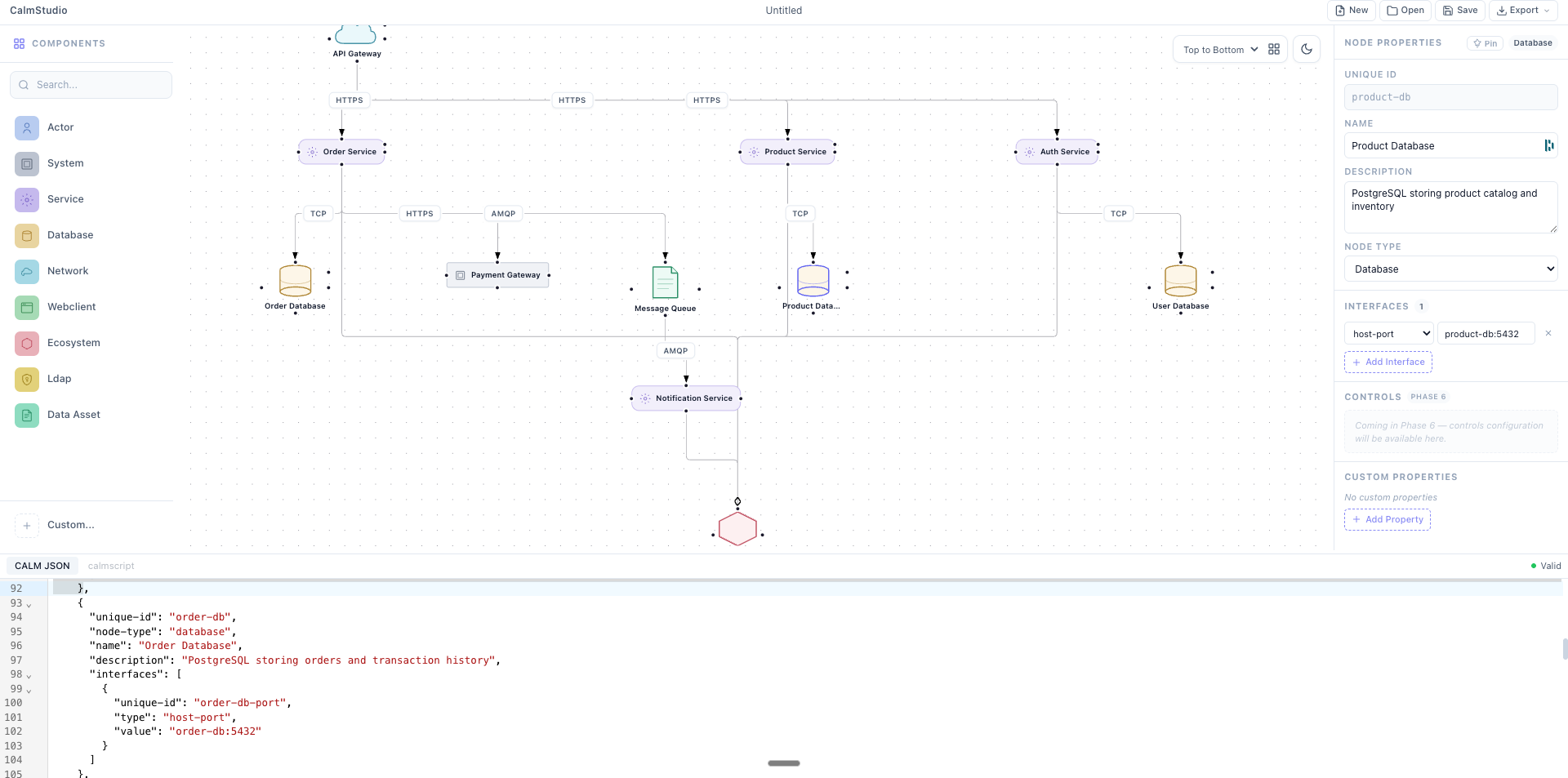
Canvas area — the main diagram workspace where you drag, connect, and arrange nodes.
Node palette (left) — all available node types grouped by pack: CALM Core, AWS, GCP, Azure, Kubernetes, AI/Agentic, and FluxNova.
CALM JSON editor (right) — the raw CALM 1.2 JSON that backs the diagram. Edits here update the canvas; canvas edits update this JSON automatically.
Step 4: Drag Nodes onto the Canvas
- In the left palette, find the CALM Core section.
- Click and drag an Actor node onto the canvas.
- Drag a Service node onto the canvas next to it.
- Drag a Database node to the right of the service.
Each node automatically gets a unique-id, node-type, name, and description in the CALM JSON. You can see the JSON update live in the right panel.
Step 5: Connect Nodes with Edges
- Hover over the Actor node until you see small blue handles appear on its edges.
- Click and drag from a handle on the Actor to the handle on the Service node.
- A connects relationship is created. You will see it appear in the JSON editor.
- Connect the Service to the Database in the same way.
Relationships in CALM have a type (connects, interacts, deployed-in, composed-of, or options). You can change the relationship type in the Properties panel that appears when you select an edge.
Step 6: Edit Node Properties
Click on any node to open the Properties panel on the right. You can edit:
- Name — the human-readable label
- Description — what this component does
- Node type — change the CALM node type
- Interfaces — add URL endpoints, host-port pairs, or container images
Changes sync immediately to the CALM JSON.
Step 7: Export as CALM JSON
When your diagram is ready:
- Open the File menu (top toolbar).
- Select Export → CALM JSON.
- Save the
.jsonfile to your project.
The exported file is valid CALM 1.2 JSON that you can check into version control, validate with the CALM CLI, or use with AI tools via the MCP server.
What You Just Built
You created a minimal 3-node architecture:
{
  "nodes": [
    { "unique-id": "actor-1", "node-type": "actor", "name": "Actor", "description": "..." },
    { "unique-id": "service-1", "node-type": "service", "name": "Service", "description": "..." },
    { "unique-id": "database-1", "node-type": "database", "name": "Database", "description": "..." }
  ],
  "relationships": [
    {
      "unique-id": "actor-to-service",
      "relationship-type": "connects",
      "source": "actor-1",
      "destination": "service-1",
      "protocol": "HTTPS"
    },
    {
      "unique-id": "service-to-db",
      "relationship-type": "connects",
      "source": "service-1",
      "destination": "database-1",
      "protocol": "TCP"
    }
  ]
}
This is a complete, valid CALM 1.2 architecture file.
Next Steps
- Architecture Overview — learn all CalmStudio features: C4 view mode, auto-layout, governance scoring, and import/export
- Extension Packs — add AWS, GCP, Azure, Kubernetes, and AI node types, or create your own pack
- MCP Server — use Claude Code or GitHub Copilot to generate CALM architectures with AI
- Contributing — contribute to CalmStudio