Install the CALM VSCode Extension
Overview
Install the CALM VSCode extension to visualize your architectures as interactive diagrams and navigate them with a tree view.
Learning objectives
By the end of this tutorial, you will:
- Install and configure the CALM VSCode extension
- Visualize your architecture as an interactive diagram
- Navigate architectures using the tree view
- Experience live updates as you edit
Prerequisites
Complete Connect Nodes with Relationships first.
Step-by-Step Guide
1. Understand What the Extension Provides
The CALM VSCode extension gives you:
- Live Architecture Visualization: Real-time interactive diagram as you edit
- Tree View Navigation: Sidebar showing all Nodes, Relationships, and Flows
- Search & Filter: Find elements across your architecture
- Home Button: Quick navigation back to top-level view
- Documentation Preview: Live docify mode for template-based docs
2. Install the CALM VSCode Extension
- Open VSCode
- Go to Extensions (
Ctrl+Shift+X/Cmd+Shift+X) - Search for "CALM Tools"
- Click Install
Marketplace Link: https://marketplace.visualstudio.com/items?itemName=FINOS.calm-vscode-plugin
3. Verify Installation
Check that the extension is working:
- Look for the CALM icon in the VSCode Activity Bar (left sidebar)
- Click it to open the CALM sidebar view
- You should see "Model Elements" panel
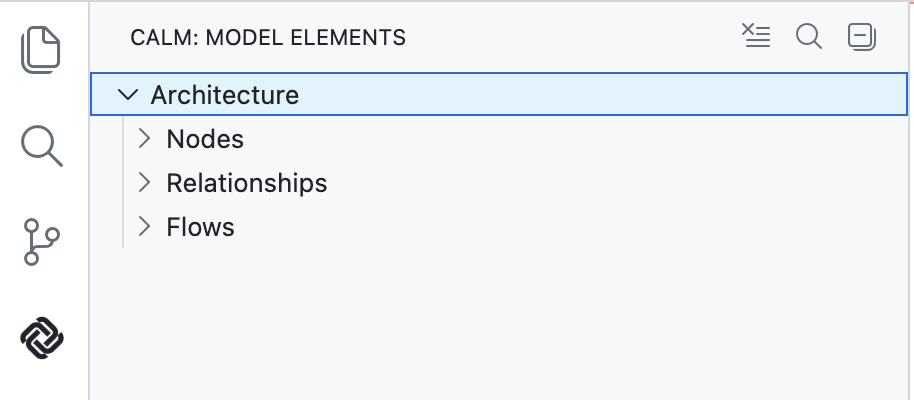
If you see the CALM sidebar, the extension is installed correctly!
4. Open the Preview Panel
Visualize the architecture you've built over Tutorials 2-3.
Steps:
- Open
architectures/my-first-architecture.jsonin VSCode - Use one of these methods to open the preview:
- Keyboard: Press
Ctrl+Shift+C(Windows/Linux) orCmd+Shift+C(Mac) - Command Palette: Press
Ctrl+Shift+P/Cmd+Shift+P, type "CALM: Open Preview" - Right-click: Right-click in the editor and select "CALM: Open Preview"
- Keyboard: Press
What you should see:
- Interactive diagram panel opens next to your JSON editor
- Visual representation of your nodes (System, Service, Database, Actor)
- Lines showing relationships (interacts, connects, composed-of)
- Different visual styles for different node types and relationship types
5. Explore the Tree View
The CALM sidebar provides a structured view of your architecture:
Steps:
- Click the CALM icon in the Activity Bar (left sidebar)
- Expand the "Model Elements" tree
- You should see sections for:
- Nodes - All your nodes listed
- Relationships - All your relationships listed
- Flows - Any flows (empty for now)
Try this:
- Click on a node in the tree to focus on it
- Click on a relationship to see the connection
- Use the search icon (magnifying glass) to filter elements
- Use the clear search icon to show all elements
6. Experience Live Updates
See how the preview updates as you edit:
Steps:
- Keep the preview panel open
- In the JSON editor, change the
nameproperty of one of your nodes - Save the file (
Ctrl+S/Cmd+S) - Watch the preview panel update automatically with the new name
This live feedback makes iterating on architectures fast and visual!
7. Use the Home Button
The preview panel has a home button for navigation:
Steps:
- In the preview panel, look for the home button (typically in the toolbar)
- If you've zoomed or panned the diagram, click home to return to the full view
- This resets the view to show your entire architecture
8. Search for Elements
Test the search functionality:
Steps:
- In the CALM sidebar tree view, click the search icon (magnifying glass)
- Type part of a node name (e.g., "service")
- The tree view filters to show only matching elements
- Click the clear search icon to show all elements again
This becomes invaluable for large architectures with dozens of nodes!
9. Understand Your Architecture Visually
Look at your architecture in the diagram:
- Open the preview if not already open
- Observe the visual structure:
- Actor → Service (interacts relationship)
- Service → Database (connects relationship)
- System contains Service (composed-of relationship)
Ask yourself:
- Does the visual make sense?
- Can you explain this architecture to someone using the diagram?
- What would you change to make it clearer?
Key concepts
Preview Panel vs. Tree View
| Feature | Preview Panel | Tree View |
|---|---|---|
| Purpose | Visual diagram | Structured navigation |
| Best for | Understanding connections | Finding specific elements |
| Update | On save | Real-time |
| Location | Editor area | Sidebar |
Keyboard Shortcuts
| Action | Windows/Linux | Mac |
|---|---|---|
| Open Preview | Ctrl+Shift+C | Cmd+Shift+C |
| Command Palette | Ctrl+Shift+P | Cmd+Shift+P |
Resources
Tips
- Use the keyboard shortcut —
Ctrl+Shift+C/Cmd+Shift+Cis the fastest way to open preview - Keep preview open — see changes as you edit and save
- Use tree view for navigation — easier than scrolling through JSON
- Use search to find specific elements quickly
- Visualization aids communication — diagrams help explain architectures to others
- Save to update — preview refreshes when you save the file
Common Pitfalls
"The preview panel isn't showing"
- Make sure you're editing a
.jsonfile - Try using the Command Palette instead of the keyboard shortcut
- Check that the extension is installed and enabled
"The diagram looks cluttered"
- Use the zoom controls to adjust the view
- Click the home button to reset the view
- Large architectures may need more screen space
Next steps
In the next tutorial, you'll add interfaces to define how your nodes communicate!