This page covers the visual interface of CALM Hub. For the technical reference see the overview and runtimes, the developer guide, and the MCP and API reference.
CALM Hub
CALM Hub is the central artifact store for the CALM ecosystem—similar in purpose to Maven Central, but built specifically for publishing, versioning, and distributing CALM architecture models and compliance assets.
In addition to acting as a repository, CALM Hub serves as an interactive visualization and navigation tool. It provides a visual representation of system architectures, patterns, and security controls, making it easier for architects, developers, and compliance auditors to navigate and communicate system designs.
Getting Started
Accessing and Starting the Hub
CALM Hub can be run in two different database/storage modes depending on your requirements:
- MongoDB Mode (Default): Uses MongoDB for data persistence. This is the production-ready default mode.
- Standalone Mode: Uses NitriteDB (an embedded NoSQL database) for local file-based storage. This mode does not require running an external MongoDB instance, making it ideal for local testing, demo scenarios, or quick setup.
Starting in MongoDB Mode (Default)
To run in MongoDB mode, you need a running MongoDB database:
- Start MongoDB:
cd calm-hub/local-devdocker-compose up
- Start the Hub:
cd calm-hub../mvnw quarkus:dev
Starting in Standalone Mode (NitriteDB)
To run the Hub in standalone mode without an external database dependency, run:
cd calm-hub
../mvnw quarkus:dev -Pstandalone
This sets the storage mode to standalone (NitriteDB), suppresses MongoDB health checks and turns off dev services, so it needs no Docker. Use the Maven profile (-Pstandalone): dev mode does not apply -Dquarkus.profile=standalone.
Accessing the UI & API Docs
Once running, you can access the Hub at:
- Visual Interface: http://localhost:8080/
- Swagger API Docs: http://localhost:8080/q/swagger-ui
Interface Layout
The CALM Hub dashboard is divided into three primary zones:
- Top Navbar: Displays the branding, navigation links (Hub explorer, standalone Visualizer), and a global search bar.
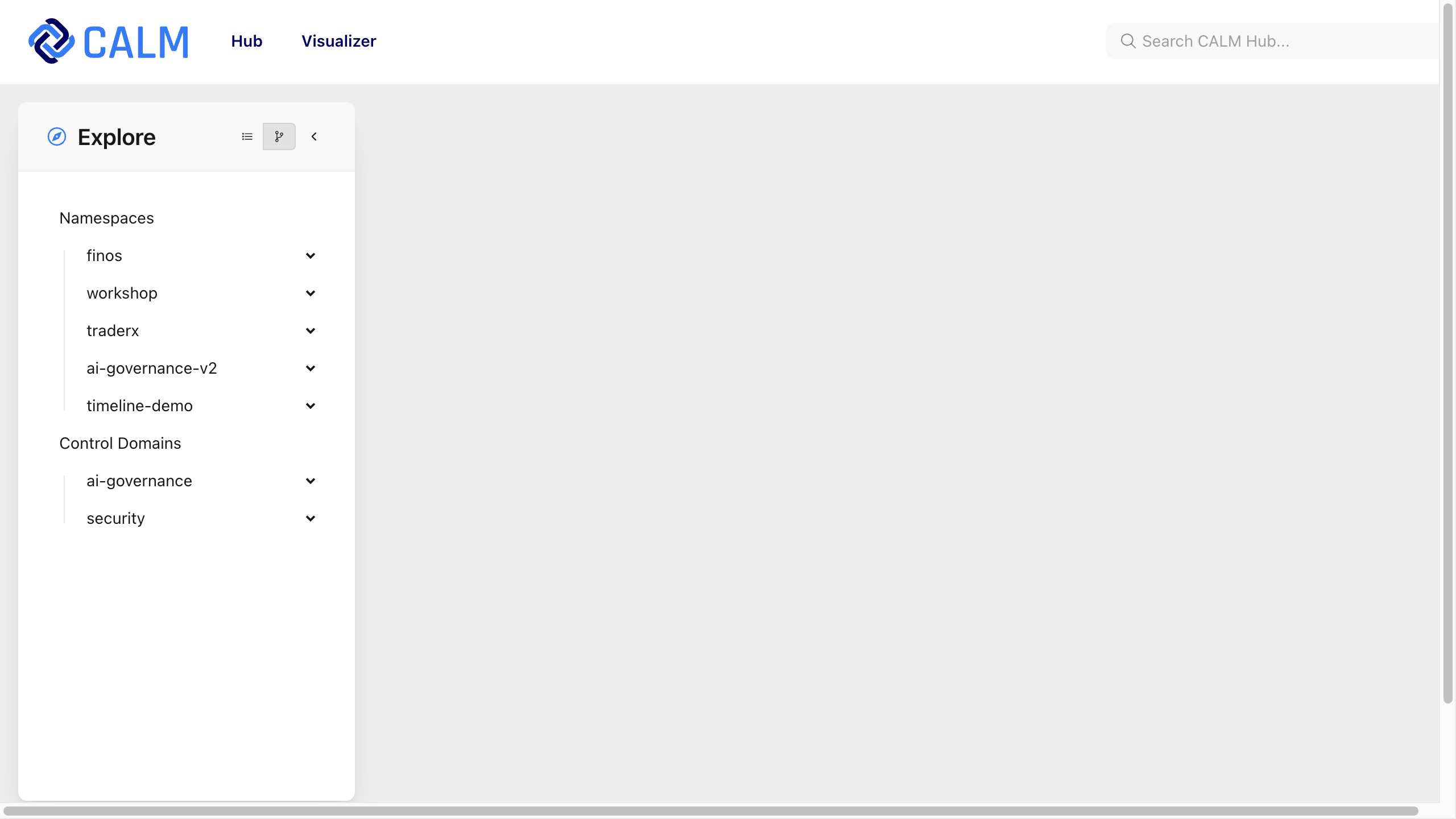
- Explore Sidebar (Left): Allows hierarchical or flat navigation of Namespaces, Resource Types, and Compliance Control Domains.
- Main Content Area (Center/Right): Dynamically updates depending on the selected resource, rendering visual diagrams, JSON documents, or interactive schema forms.
Exploring Hub Artifacts
Namespaces Sidebar
Architectures and related documents in CALM Hub are organized under Namespaces (e.g. traderx, finos). The sidebar allows you to explore these assets using two viewing modes:
- Hierarchical View (Tree): Group and nest sub-namespaces based on dot-notation boundaries (e.g.
org.finos). - Flat View (List): Lists all namespaces alphabetically at the root level.
Toggle between these modes using the list and tree buttons at the top of the sidebar.
Artifact Resource Types
Under each namespace, you can browse and retrieve the following artifacts:
| Artifact Type | Purpose | Typical Content |
|---|---|---|
| Architectures | Deployed systems and architectures | Component relationships, protocols, and control mappings |
| Patterns | Standard blueprints or reusable architectures | Reusable design specifications (e.g., trading system layout) |
| Flows | System transactions or business processes | Sequential interactions between components over time |
| Standards | Architectural rules and policies | Structural validations (e.g., mandating encryption) |
| ADRs | Architectural Decision Records | Human-readable markdown files capturing system decisions |
| Interfaces | Declared communication endpoints | Exposed APIs, host-port pairs, or container images |
Interactive Architecture Visualizer
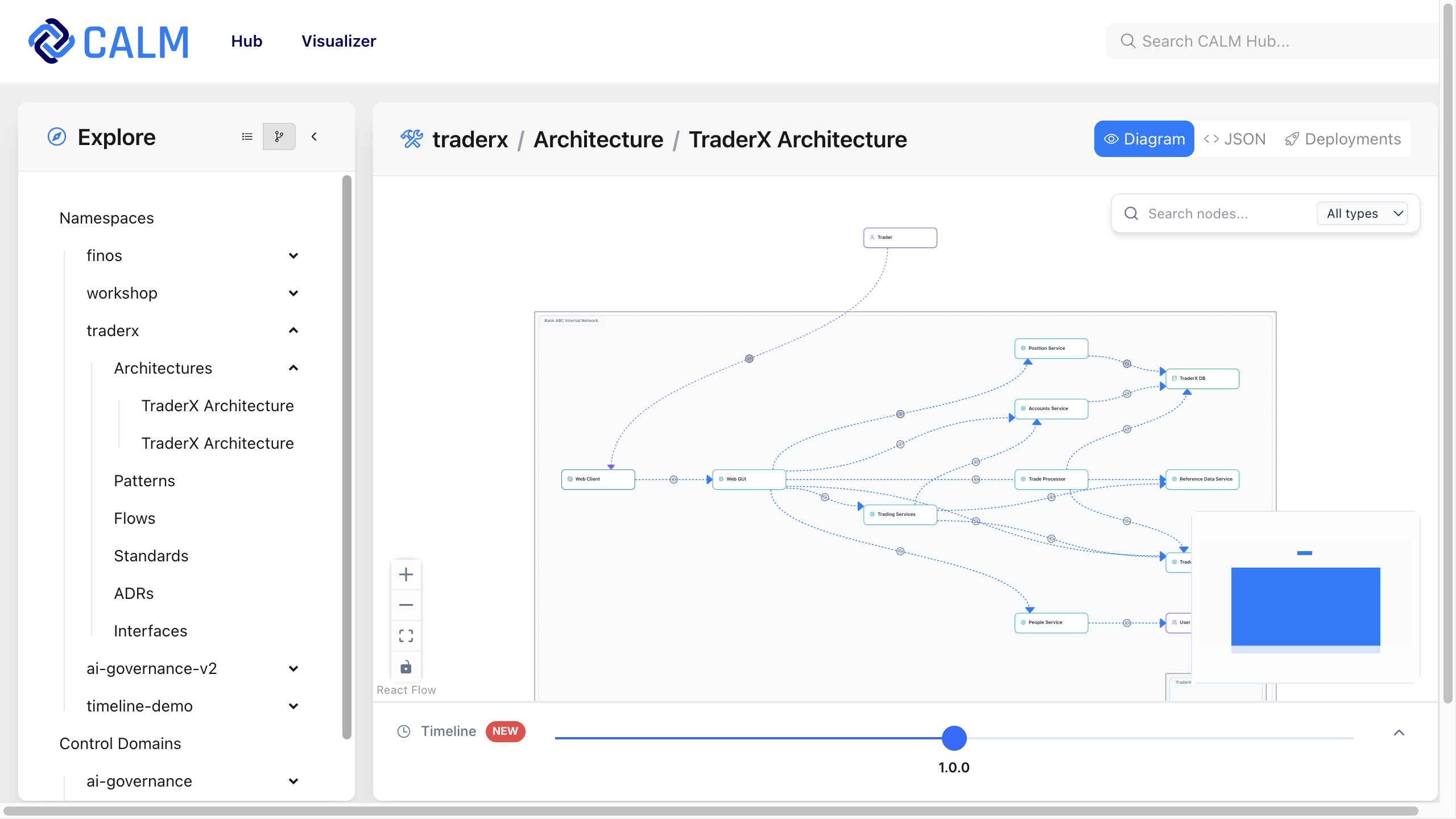
When you select an Architecture or Pattern artifact, CALM Hub renders the model using an interactive canvas.
Canvas Features
- Interactive Elements: Hovering or clicking on a node or edge displays its name, type, and relationships.
- Pan & Zoom: Click and drag the canvas background to pan; use your scroll wheel or the floating bottom-left controls to zoom.
- Minimap: A floating overview panel in the bottom-right corner helps navigate larger diagrams.
- Component Search & Filtering: Filter nodes dynamically using the search bar and type dropdown at the top right of the canvas.
- Details Sidebar: Clicking any component opens a right-hand sidebar displaying its complete metadata, interfaces, and compliance controls.
Tab Views
- Diagram Tab: The interactive visual representation of the model.
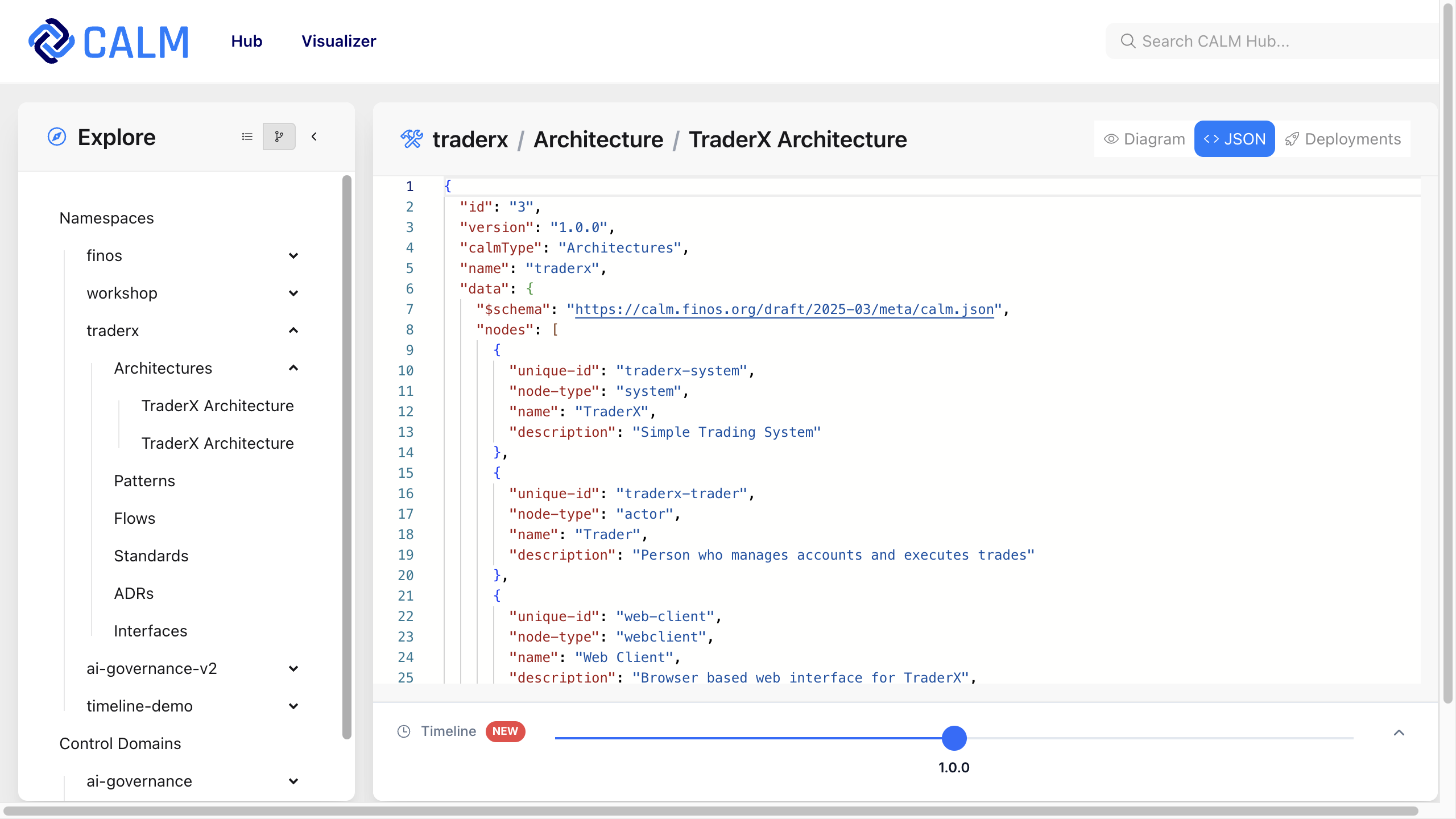
- JSON Tab: The raw, validated CALM JSON backing the diagram.
- Deployments Tab: Overlays deployment decorators (environments, hosts, and instance settings) on top of the base architecture.
Control Evaluations
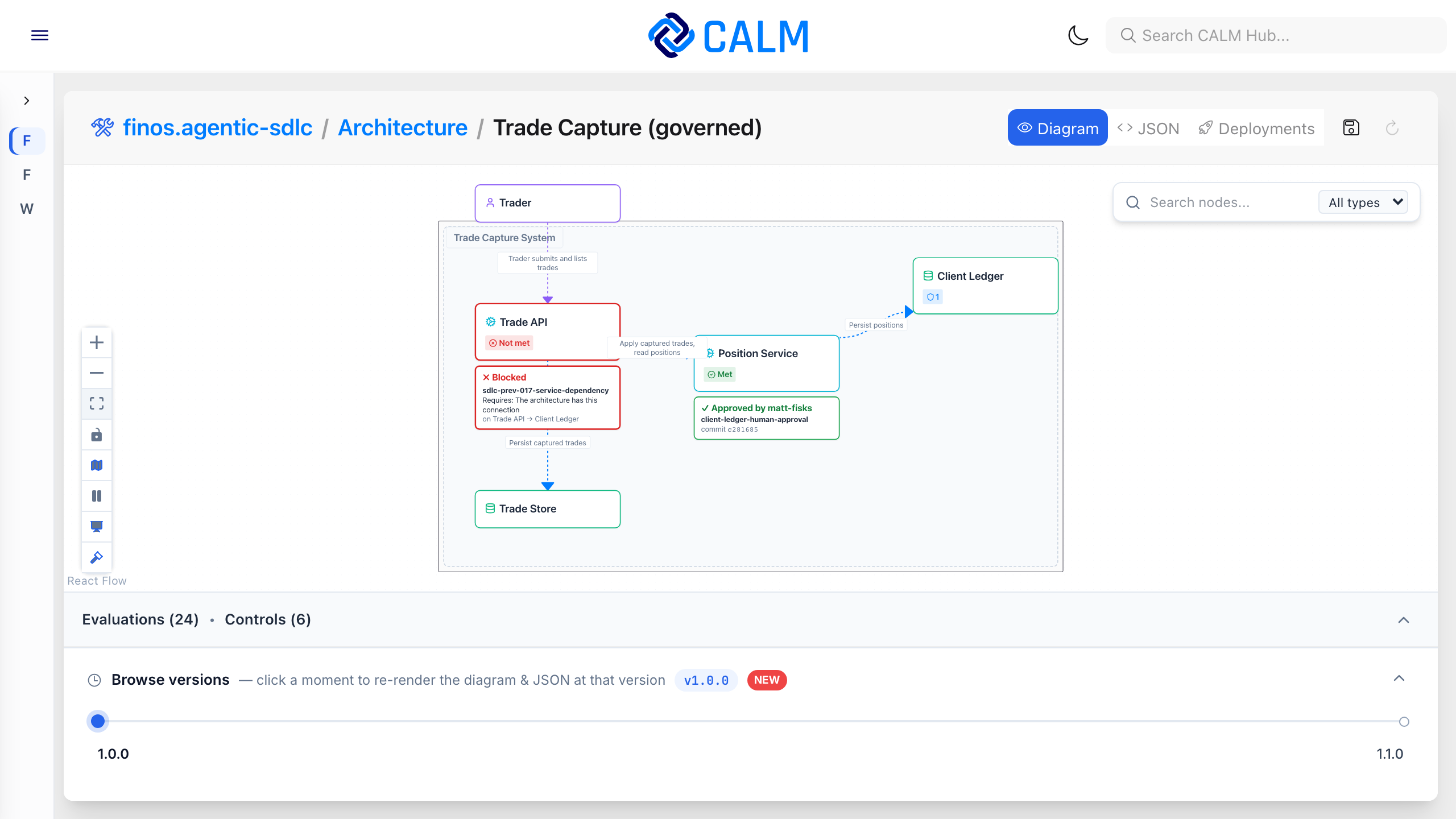
When a tool checks an architecture's controls, for example a policy engine that checks a change before it merges, it can record each result in CALM Hub as a control evaluation decorator. Each decorator says which control was evaluated, whether it was met, not-met or not-applicable, and, when not met, which checks failed. The format is the control evaluation decorator Standard. The decorator's target is the architecture version, in the form /api/calm/namespaces/{namespace}/architectures/{id}/versions/{major-minor-patch}, and its applies-to lists the nodes and relationships the result is about. Create it with POST /api/calm/namespaces/{namespace}/decorators.
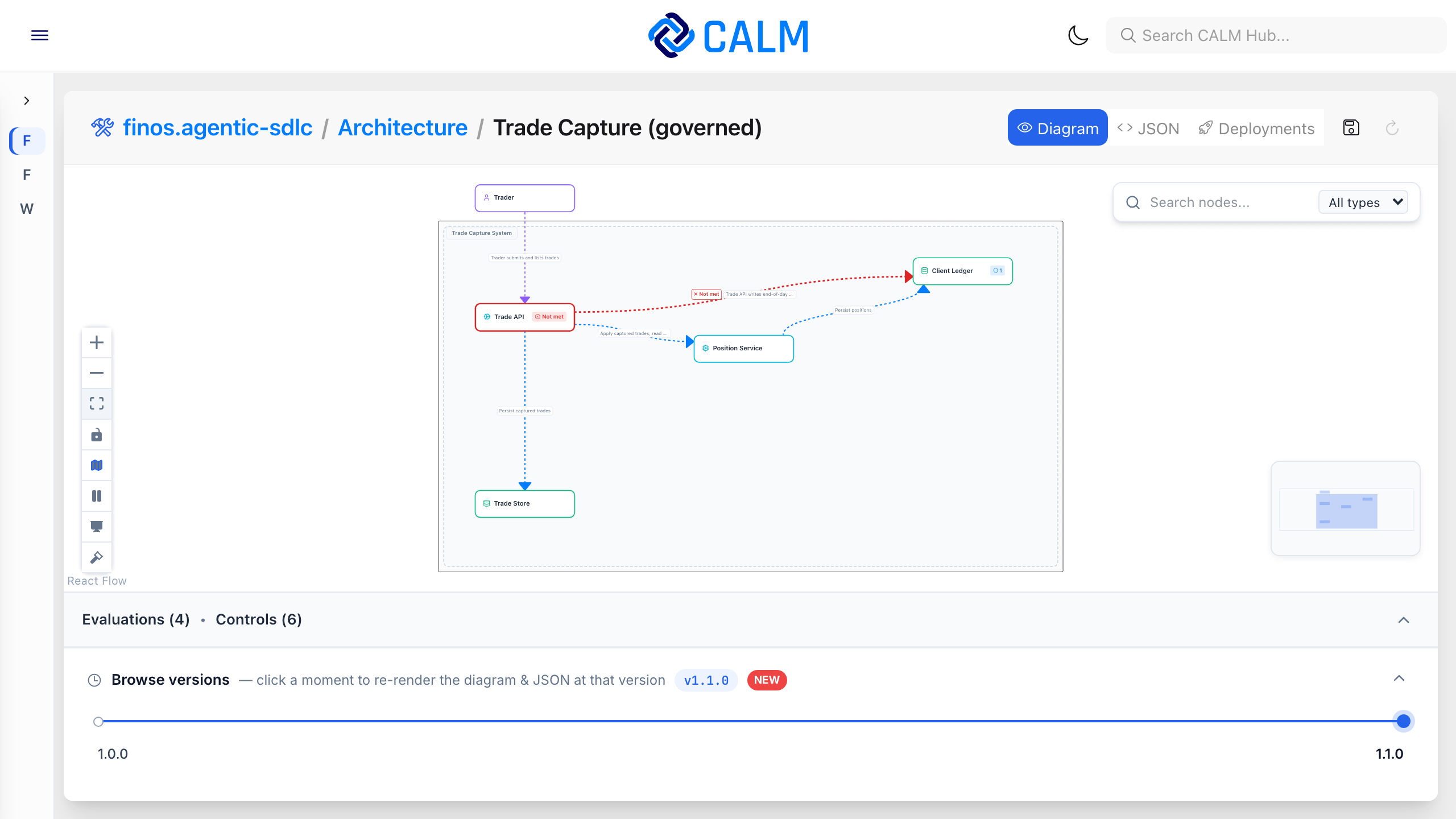
The diagram shows the latest result for each node and relationship of the version on screen:
- Not met: The node gets a red border and a Not met badge. Hover over it to see its latest evaluations, not met first, and what each failed check requires. A relationship is drawn red, arrowheads included, with a Not met label.
- Met: The node gets a Met badge. Hover over it to see who approved the change, when an approver is recorded.
- Containers: A container (a node that other nodes are
deployed-inorcomposed-of) shows the same badge beside its label, and a solid red border when not met. Adeployed-inorcomposed-ofrelationship is drawn as its container rather than as a line, so its results show on the container. - Evaluations panel: The metadata panel below the diagram lists every evaluation of the version, newest first, with the elements it applies to and its findings.
While the architecture is open, the results refresh every 5 seconds, so a new decision appears without reloading the page.
Decision Overlay
The Show decisions control (the gavel icon in the bottom-left diagram controls) draws each element's latest decision on the diagram, so it can be read without hovering. This is useful when you present the diagram or share your screen.
- Below each evaluated node or container, a callout says Blocked, with each control that was not met, what it requires and the element it is about; Approved by someone, with the control and the short commit; or Met, with the reviewer when one is recorded.
- A relationship that was not met says what it requires beside its Not met label.
The overlay turns on and off with presentation mode (the presentation icon beside it), which makes the diagram text larger for a projector. You can also switch the overlay on or off by itself. The choice is kept for the browser session.
Timeline
The bottom of the visualizer features a collapsible Timeline Bar that represents the history and evolution of the selected architecture or pattern artifact.
How the Hub renders this bar depends on whether the artifact has an authored timeline document or only published versions — see Explicit vs. Implied Timelines for the underlying concept.
Collapsed Mode
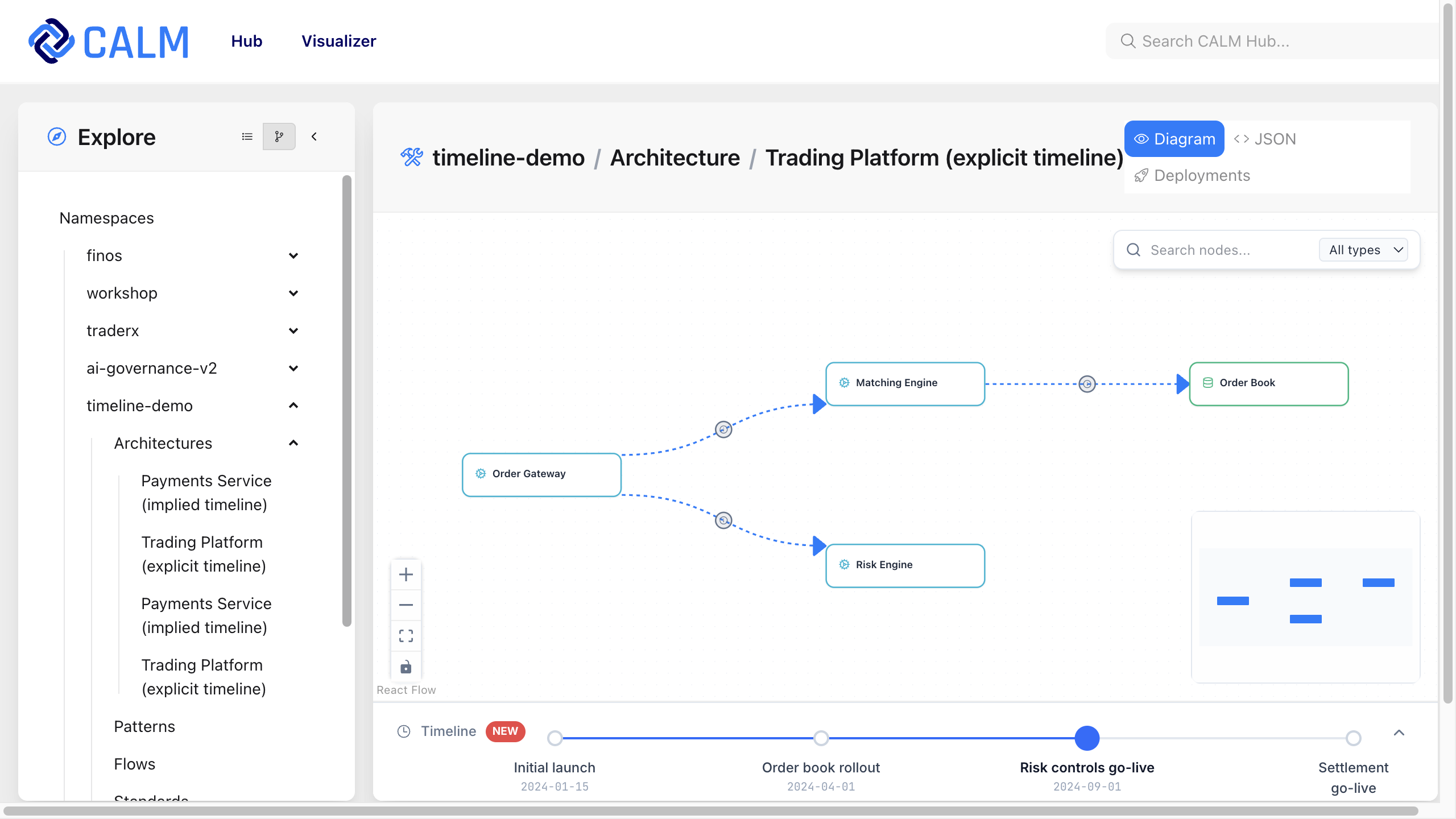
By default, the timeline appears as a compact sparkline strip at the bottom of the screen.
- Version Dots: Each version is represented by a dot arranged chronologically (oldest first on the left). The currently active version is highlighted in blue.
- Navigation: Left-click any dot to switch the main canvas to that specific version.
- Date Markers: Release dates or milestone dates are rendered underneath each version dot when configured.
Expanded Mode
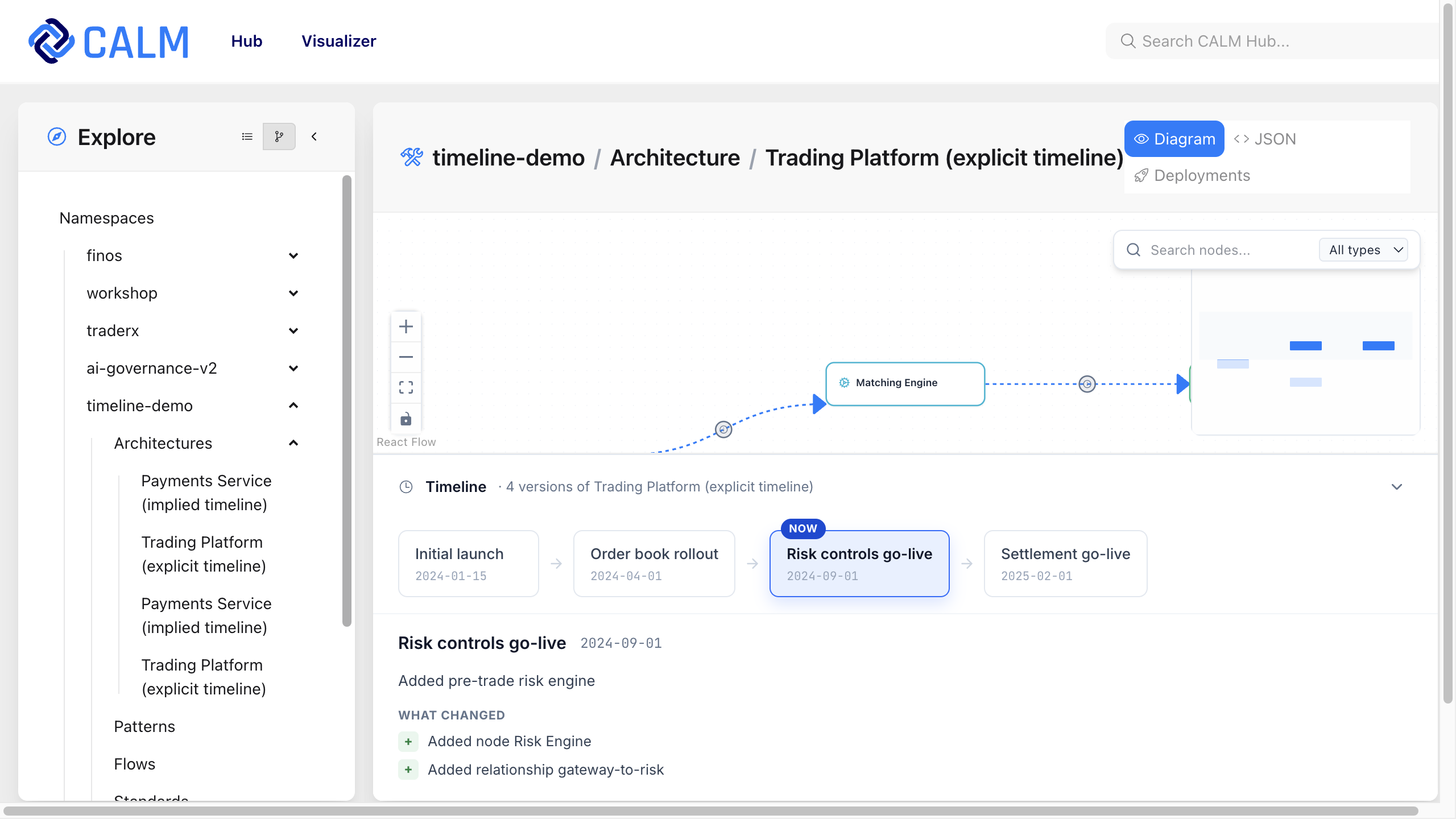
Click the chevron button on the right side of the sparkline to expand the timeline.
- Moment Cards: Displays larger card layouts for each version containing titles, release dates, and descriptions of what was introduced in that milestone.
- Baseline Indicator (NOW Badge): Authored timelines feature a NOW badge on the card matching the current production-deployed release.
- Change Log (What Changed): Renders a live-diff table below the cards detailing precisely what components, relationships, or controls were added, modified, or removed compared to the immediately preceding version.
Version Comparison (Compare Mode)
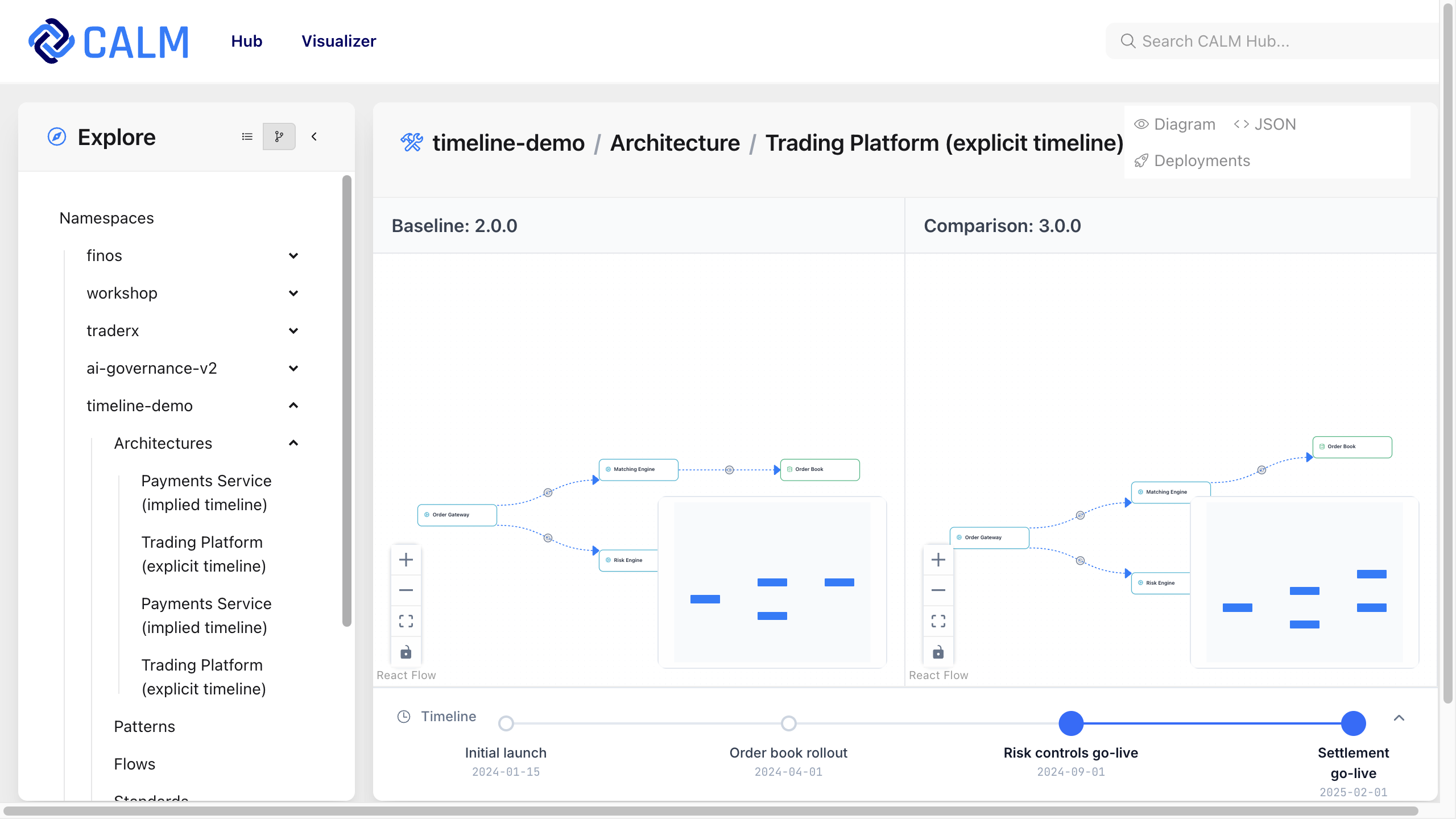
To visually compare how an architecture evolved between any two milestones in its history:
- Right-click the starting version's dot on the sparkline to open the context menu and select Compare from.
- Navigate or right-click the ending version's dot and select Compare to.
- CALM Hub enters Compare Mode, displaying:
- Side-by-Side Diagram Diffs: Shows the baseline version and the comparison version canvases next to each other.
- Color-Coded Canvas Changes: Added items are highlighted in green on the comparison canvas, modified items in blue, and deleted items in red.
- Change Matrix Table: Displays the total changes count split by Node Changes and Relationship Changes, with detailed lists of exact additions and modifications.
Compliance and Controls Deep-Dive
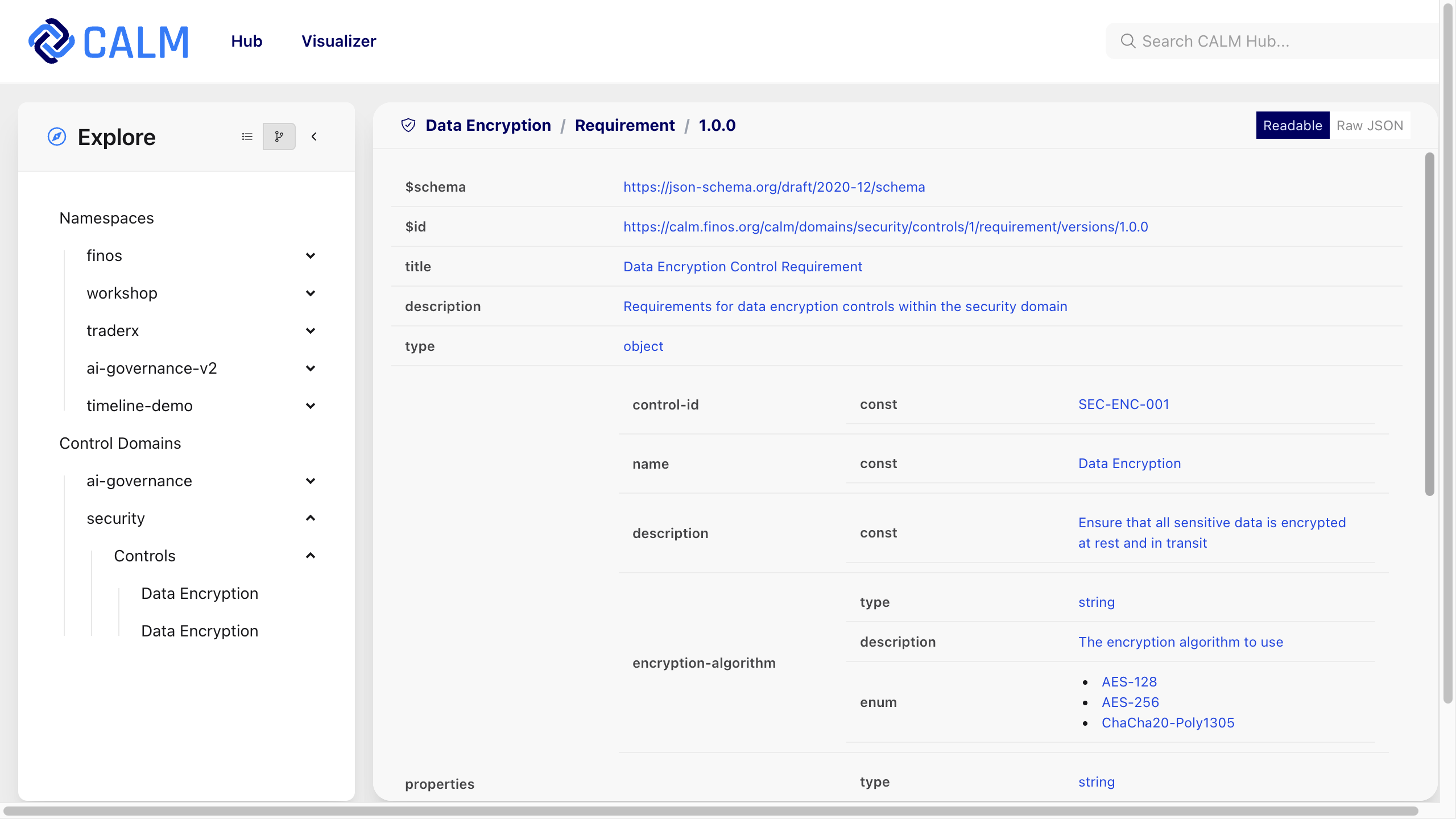
Selecting a control from a Control Domain (e.g. security or ai-governance) displays detailed policy configurations.
Views
- Readable Tab: Parses complex JSON Schema rules into human-readable tables detailing parameter constraints, encryption requirements (e.g. approved TLS versions), and rotation periods.
- Raw JSON Tab: Inspects the raw control requirement schema.
- Configurations & Versions: Toggles between different policy revisions and environment-specific overrides.
Access Control
CALM Hub uses a hierarchical entitlement model to control who can read, write, and administer namespaces. See CALM Hub Entitlements for the full model, worked examples, and API usage.