VS Code Extension
The CALM Tools VS Code extension turns your editor into a live workbench for CALM architecture models. It validates documents on the fly, renders an interactive preview, and surfaces model elements in a navigable sidebar — all without leaving the file you're editing.
Installation
The extension is published to the Visual Studio Code Marketplace.
- Open VS Code.
- Open the Extensions view (
Cmd+Shift+Xon macOS,Ctrl+Shift+Xon Windows/Linux). - Search for CALM Tools.
- Click Install.
Alternative install paths:
- Marketplace web page: marketplace.visualstudio.com/items?itemName=FINOS.calm-vscode-plugin
- VSIX file: download the latest
.vsixfrom the GitHub releases and run Extensions: Install from VSIX… in the Command Palette.
Once installed, open any CALM JSON file (one whose $schema points at https://calm.finos.org/.../meta/calm.json) and the extension activates automatically.
Interface Layout
The extension contributes a dedicated CALM entry to the activity bar. Selecting it opens the Model Elements view, which lists the contents of the active CALM document.
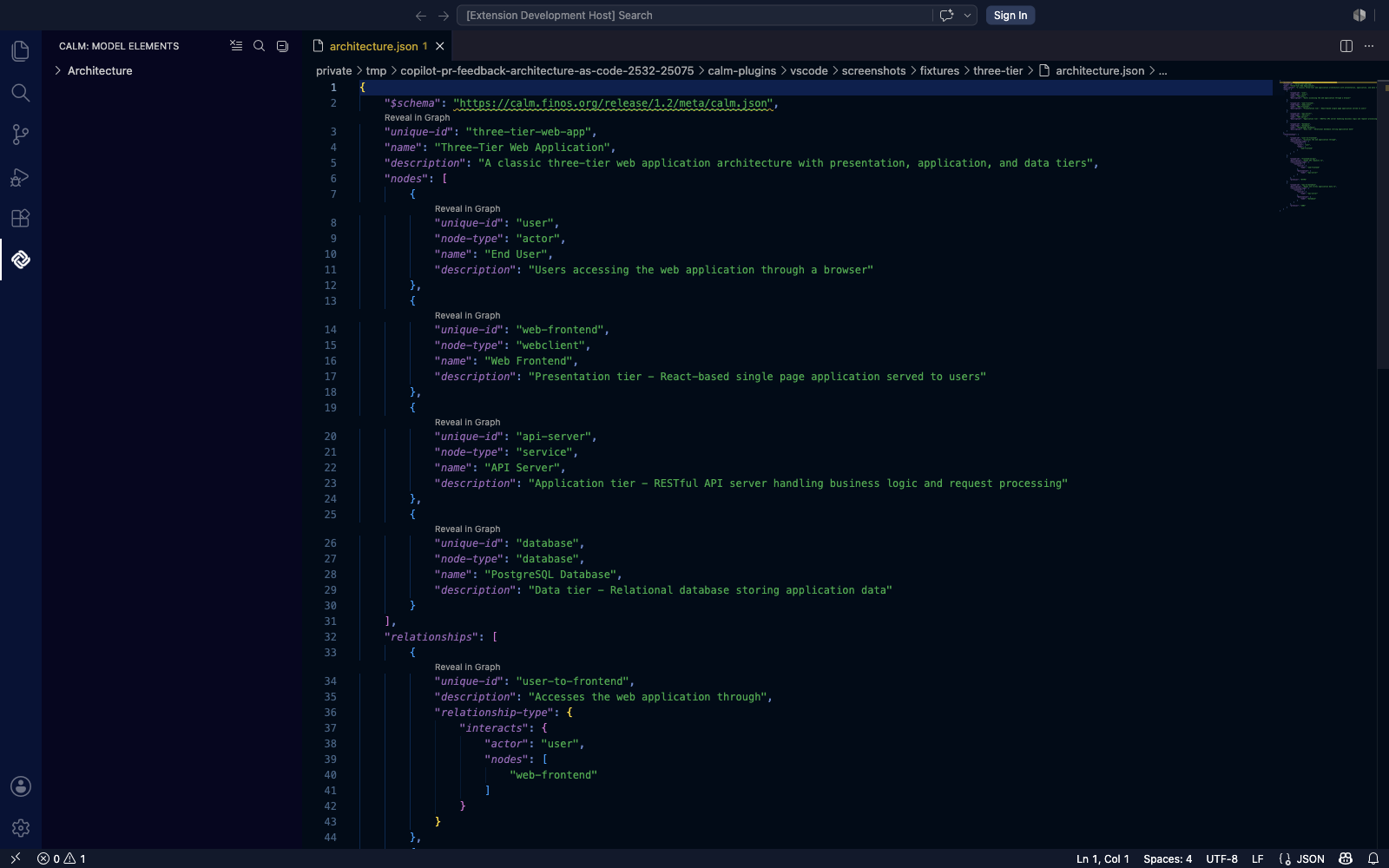
The right-hand preview panel is opened explicitly — see Interactive Preview below.
Tree View Navigation
The Model Elements view groups the active document's contents into three top-level branches: Nodes, Relationships, and Flows. Expanding a branch reveals every element of that type defined in the document.
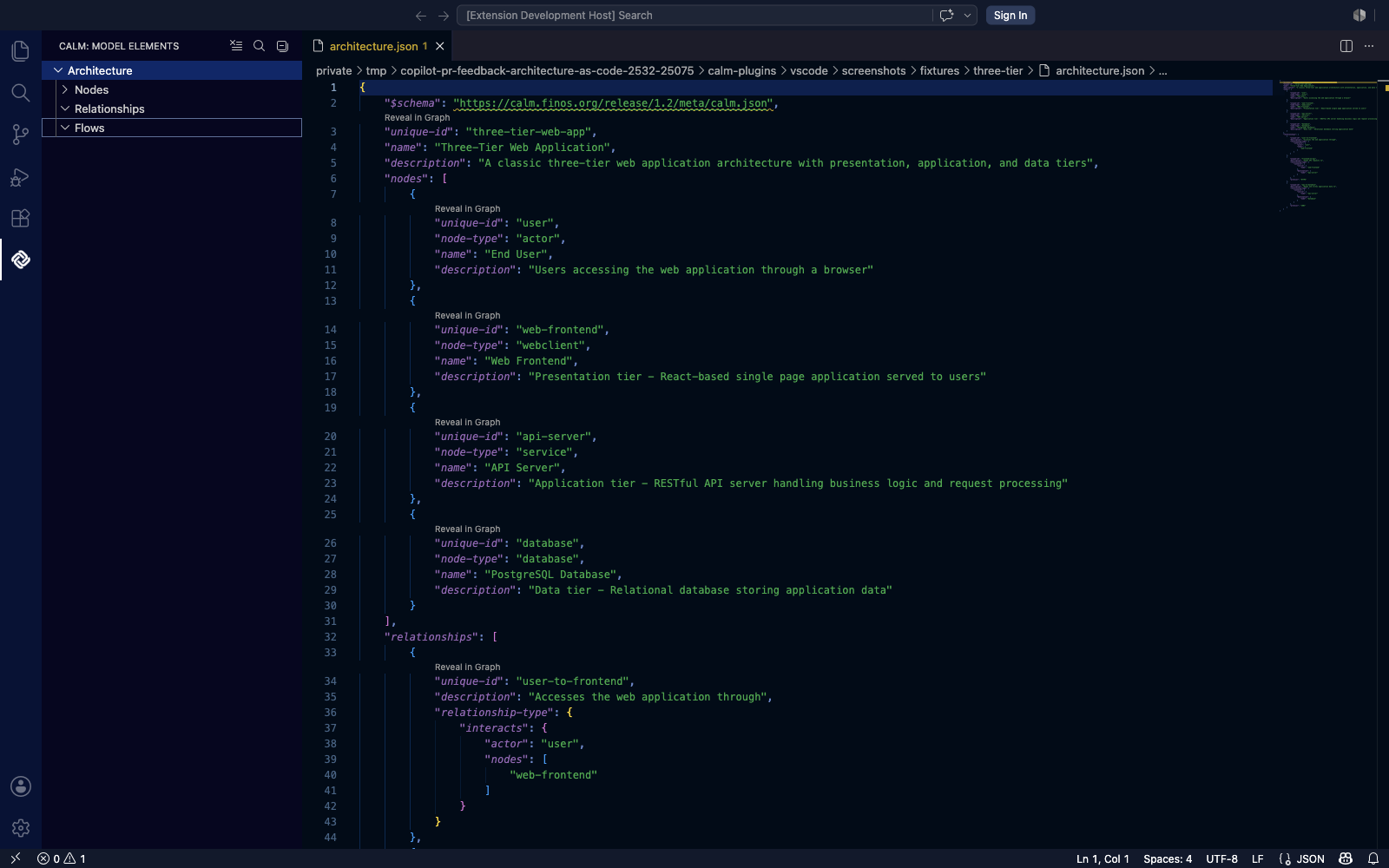
Clicking any element focuses the corresponding range in the JSON editor. The view stays in sync with the active document — switching tabs updates the tree.
Search & Filter
For larger architectures, use Search Model Elements (the magnifier icon at the top of the view, or the command of the same name in the palette) to filter the tree to elements matching a substring. The input box prompt reads "Search CALM Architecture Elements"; type any node-id substring and press Enter.
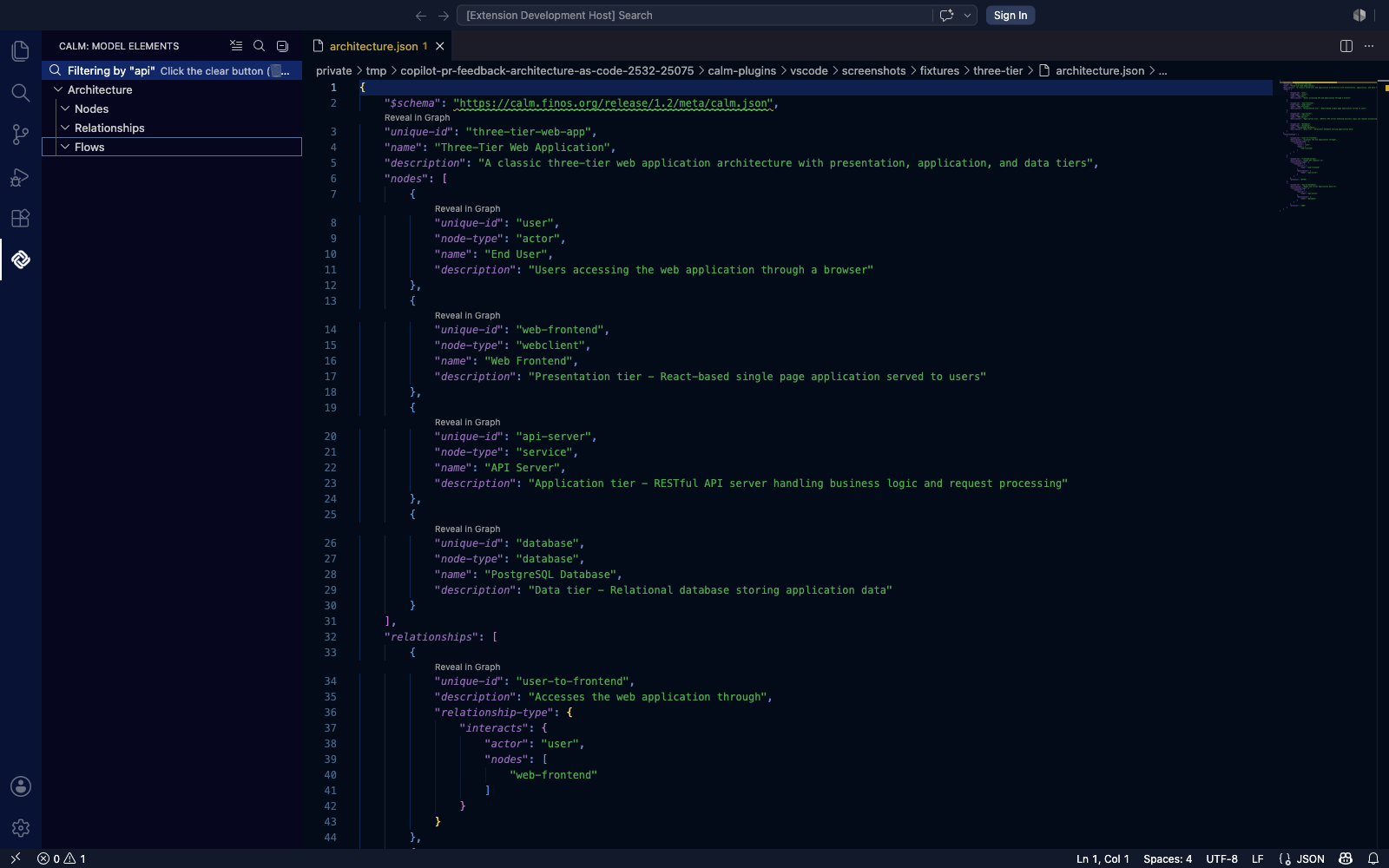
A Filtering by … banner appears at the bottom of the view while a filter is active. Click its clear button (or run Clear Search) to restore the full tree.
Interactive Preview
The preview panel renders the active CALM document as an interactive diagram next to the JSON source.
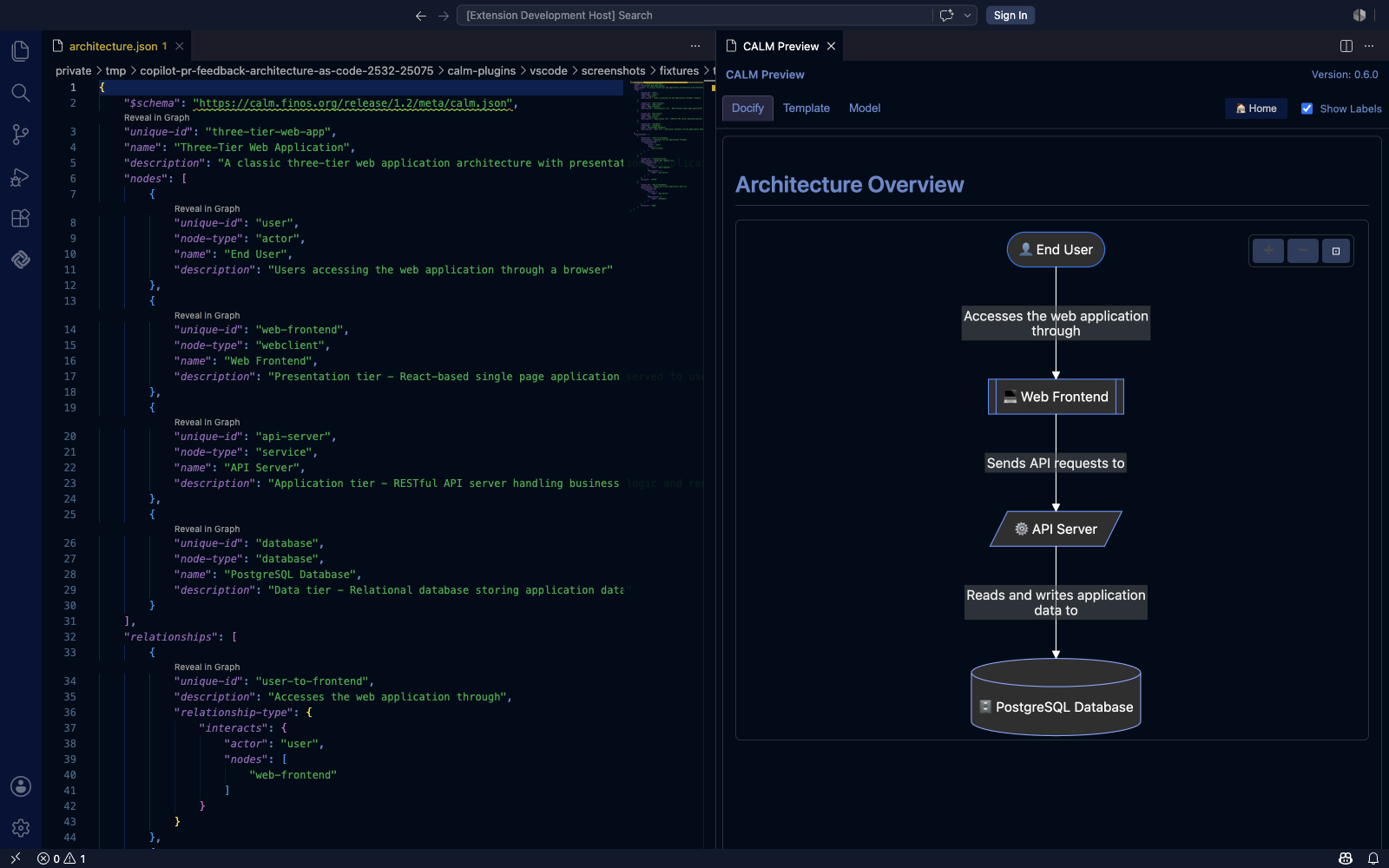
Open the preview with any of:
- Keyboard:
Cmd+Shift+C(macOS) /Ctrl+Shift+C(Windows / Linux) - Command Palette → CALM: Open Preview
- Right-click in the editor → CALM: Open Preview
Diagram interactions:
- Click any node to focus its definition in the JSON editor.
- The preview re-renders automatically when you save the file.
- Use the floating controls in the top-right of the diagram to zoom or reset the view.
The preview has three tabs at the top — Docify (the rendered view shown above), Template (the raw template source for the active document), and Model (the parsed model). See Documentation Generation below for the full breakdown.
Themes
The preview's colour palette is controlled by the calm.docify.theme setting. Four explicit themes are available, plus auto which follows your VS Code colour theme.
| Light | Dark |
|---|---|
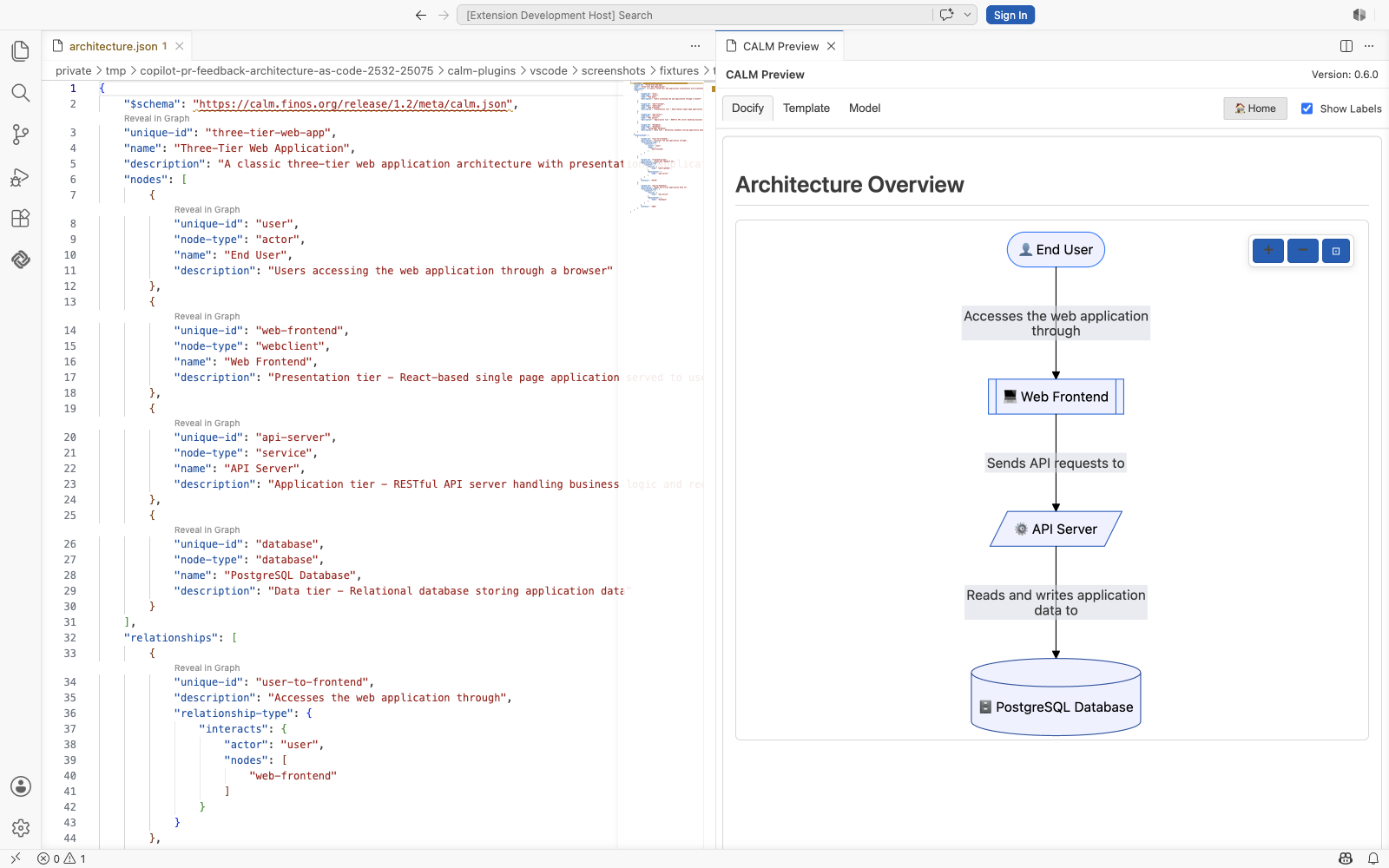 | 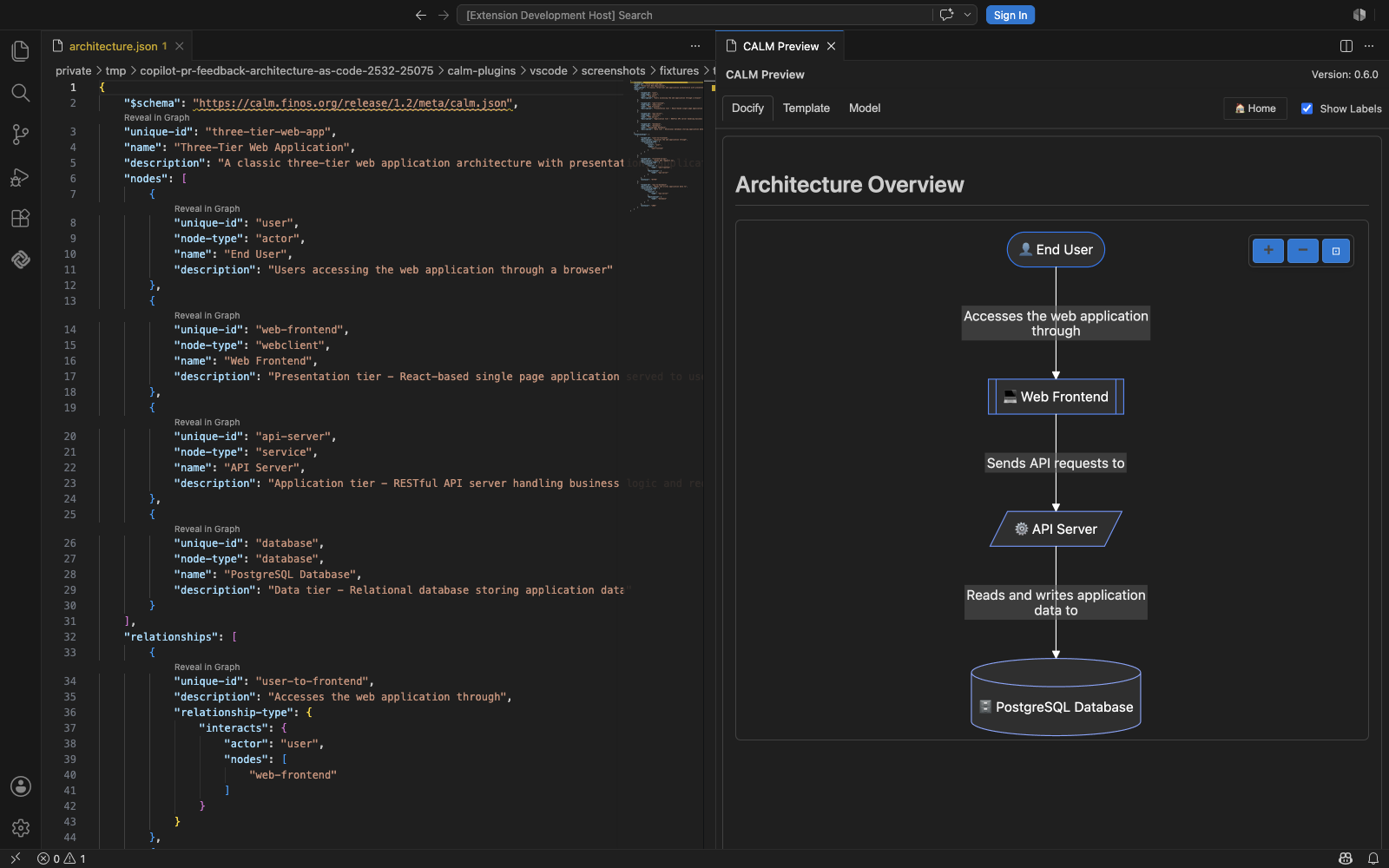 |
The two high-contrast themes (high-contrast-light and high-contrast-dark) follow the same pattern but use VSCode's higher-contrast palettes for accessibility — set the calm.docify.theme setting and your editor's high-contrast workbench theme together to use them.
Configure in settings.json:
"calm.docify.theme": "auto"
Acceptable values: light, dark, high-contrast-light, high-contrast-dark, auto.
Layout Engines
The diagram supports two layout engines, configured by calm.preview.layout:
| ELK (default) | Dagre |
|---|---|
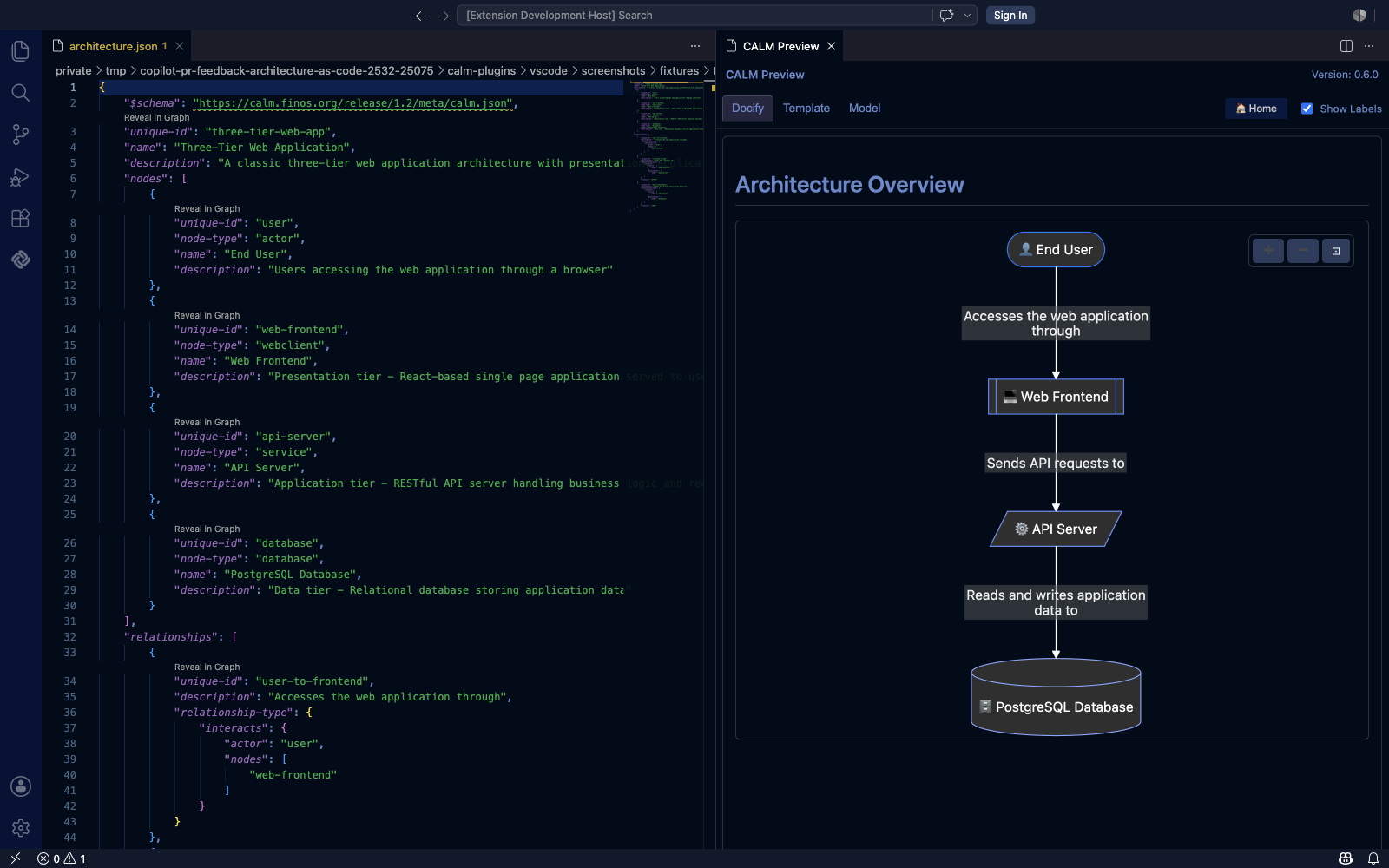 | 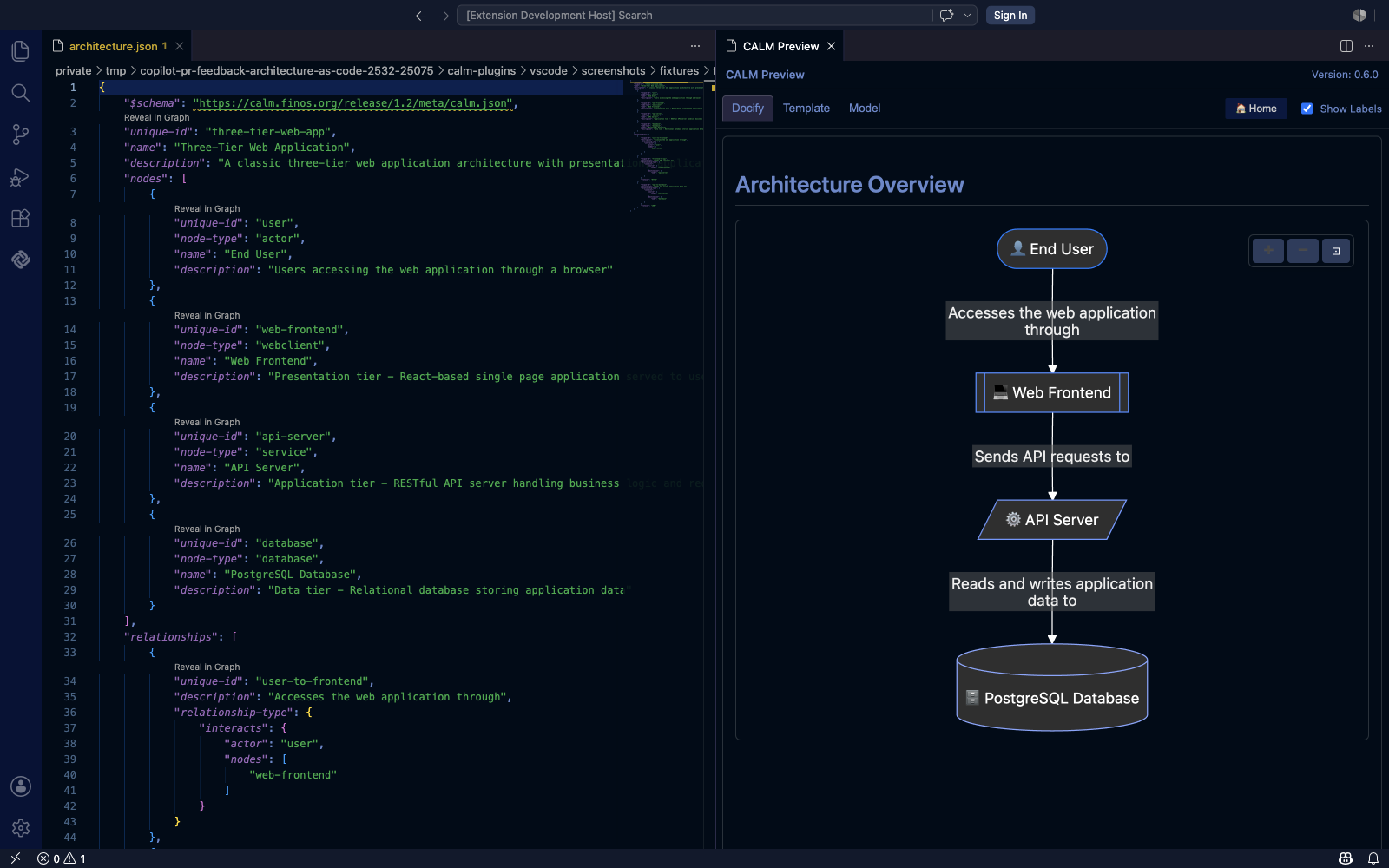 |
- ELK (Eclipse Layout Kernel) — better automatic placement for complex diagrams; improved edge routing and hierarchy handling. Recommended for most architectures.
- Dagre — the classic Mermaid layout engine. Choose this if you prefer Mermaid's traditional layout behaviour.
The setting applies workspace-wide. Individual templates can override it from the widget's frontmatter — see widget configuration — for example:
---
widget-options:
  block-architecture:
    layout-engine: dagre
---
Or inline in a Handlebars template:
Real-Time Validation
Open or save a CALM document and the extension validates it against the bundled CALM schemas. Errors and warnings appear in the Problems panel; clicking an entry jumps to the offending line.
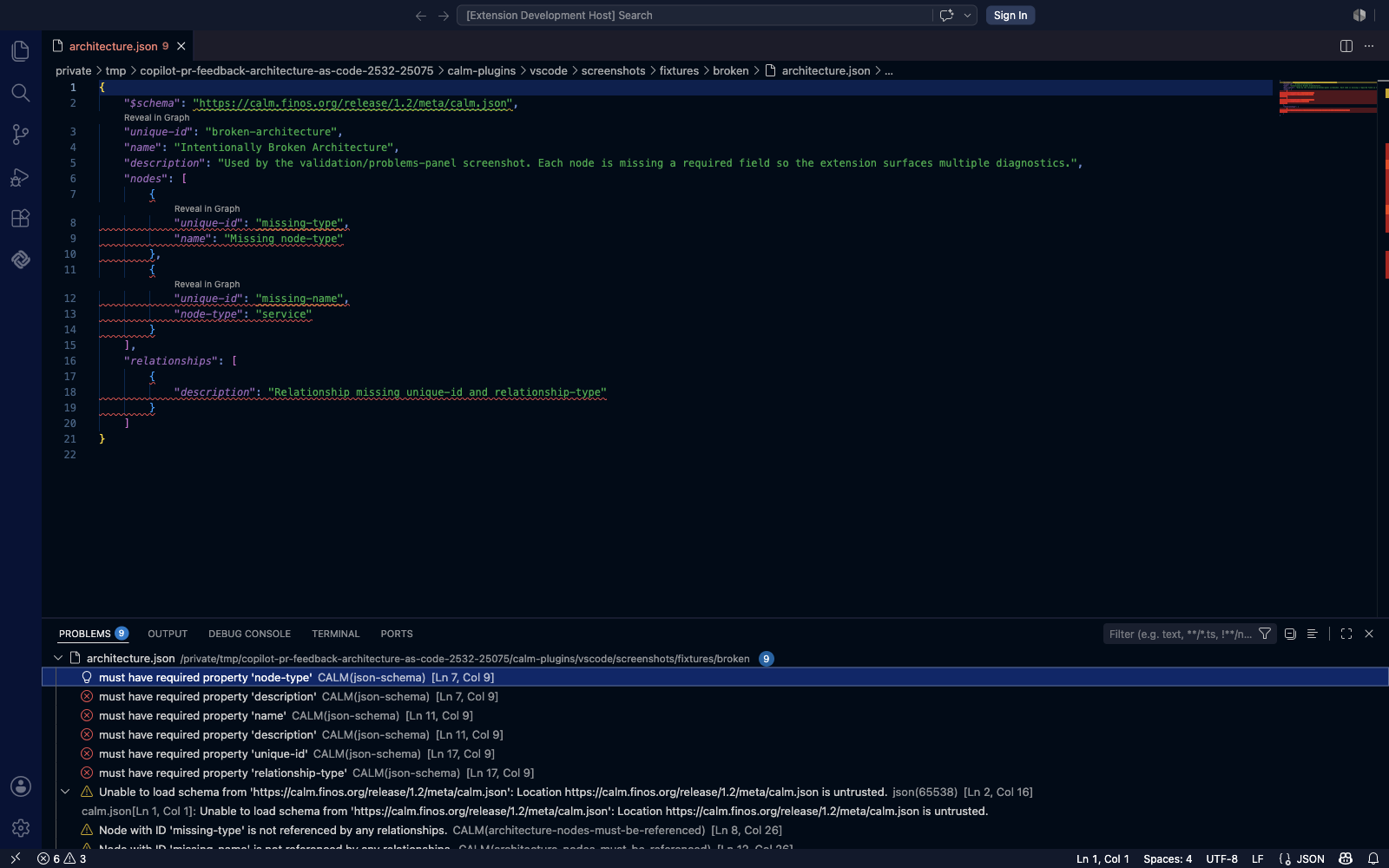
Validation is triggered on:
- Opening a CALM document
- Saving (
Cmd+S/Ctrl+S) - Switching to a different editor tab
The extension identifies a file as CALM by its $schema reference, so non-CALM JSON files are left untouched. Schemas are bundled with the VSIX — validation works offline.
Timeline Navigation
When the active editor is a CALM timeline document — a JSON file whose $schema references calm-timeline.json and whose top-level shape includes a moments array — the Model Elements sidebar switches into timeline mode. Each moment in the timeline becomes a navigable item in the sidebar, with the current moment marked by a star.
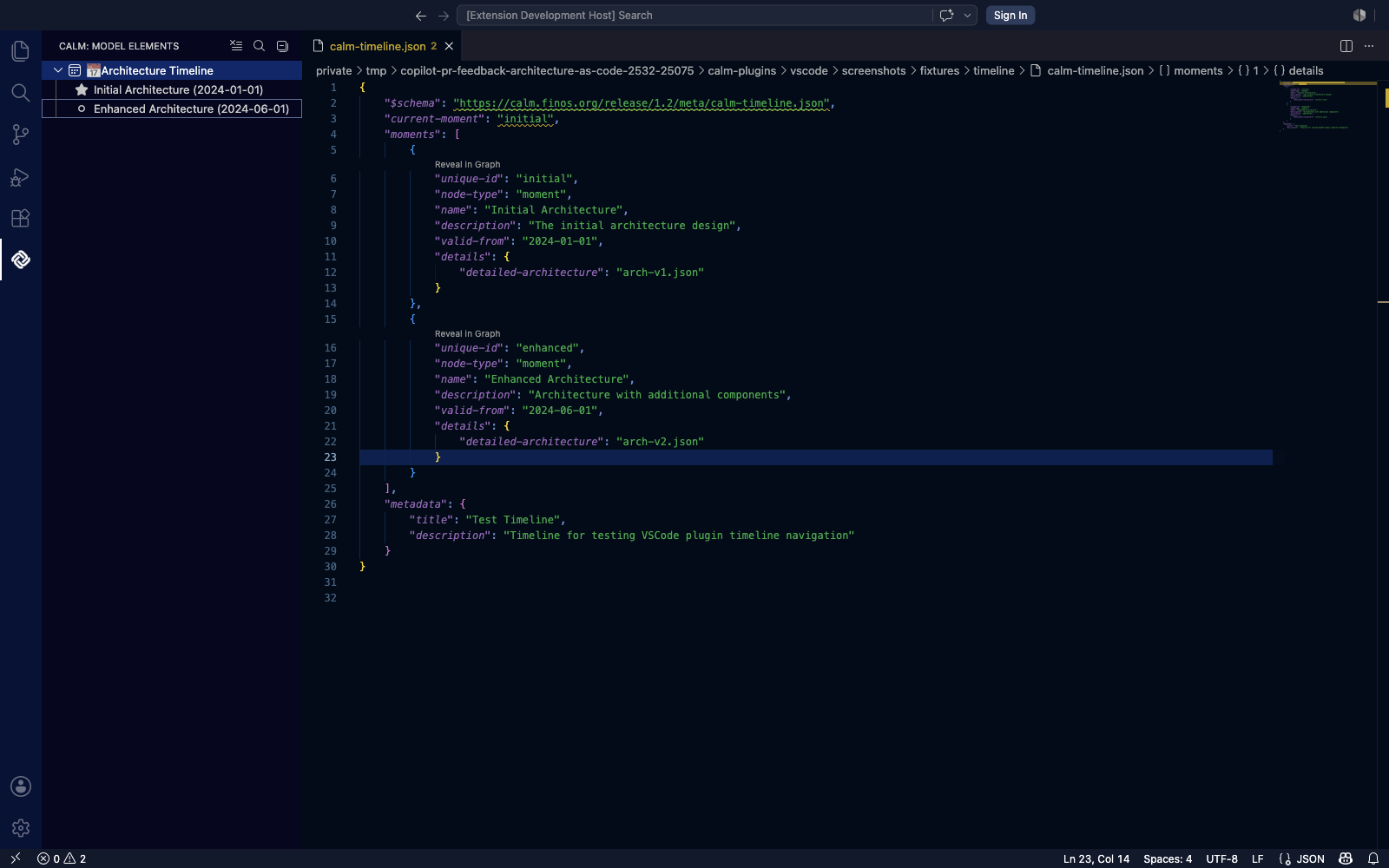
Authoring a timeline document
A minimal calm-timeline.json document looks like this:
{
    "$schema": "https://calm.finos.org/release/1.3/meta/calm-timeline.json",
    "current-moment": "initial",
    "moments": [
        {
            "unique-id": "initial",
            "node-type": "moment",
            "name": "Initial Architecture",
            "description": "The first version of the system",
            "valid-from": "2024-01-01",
            "details": {
                "detailed-architecture": "arch-v1.json"
            }
        },
        {
            "unique-id": "enhanced",
            "node-type": "moment",
            "name": "Enhanced Architecture",
            "description": "Adds a caching layer and an API gateway",
            "valid-from": "2024-06-01",
            "details": {
                "detailed-architecture": "arch-v2.json"
            }
        }
    ],
    "metadata": {
        "title": "Payments Platform Timeline",
        "description": "Architecture evolution across 2024"
    }
}
Each moment is a versioned snapshot. The details.detailed-architecture field points to the architecture file representing the system at that moment — either a relative path (resolved against the timeline document's folder) or a URL that you map via Multi-Document Navigation.
The current-moment field tells the extension which moment is the current production-deployed state. That moment renders with the star icon in the sidebar; non-current moments use a hollow circle.
How the extension uses it
- Sidebar grouping — the Model Elements view replaces its usual Nodes / Relationships / Flows groups with the single 📅 Architecture Timeline group. Each child item is a moment, labelled with its
nameandvalid-fromdate. - Click to open — clicking a moment opens the architecture file referenced by its
details.detailed-architecture. The preview, validator, and tree all re-target the newly opened file. - Current-moment indicator — the star marker means "this is the baseline" — useful for orienting yourself when a timeline contains many historical snapshots.
- Relative-path resolution — paths inside
details.detailed-architectureare resolved relative to the timeline document. If you need to resolve URLs to local files, configurecalm.urlMapping(see Multi-Document Navigation).
When to use a timeline
A timeline document is the right tool when:
- The architecture has evolved through multiple distinct versions you want to keep traceable side-by-side.
- You need an at-a-glance view of "what we have today" vs "what we had before" vs "what's planned".
- Reviewers and architects need to navigate between versions without remembering filenames.
If you only have a single architecture, you don't need a timeline document — the extension's standard tree view is sufficient.
For the concept behind timelines (explicit vs implied, how the Hub renders them) see Explicit vs. Implied Timelines.
Multi-Document Navigation
Real-world CALM models are usually split across many files. A top-level system architecture references downstream service architectures by URL, each service architecture may reference deployment-detail files, and so on. The extension uses a URL-to-local-path mapping to resolve these references against files on your disk, so clicking through the diagram opens the right file every time.
How it works
A node in a parent architecture uses the details.detailed-architecture field to point at a child document:
{
    "unique-id": "payment-service",
    "name": "Payment Service",
    "node-type": "container",
    "details": {
        "detailed-architecture": "https://specs.internal/payment-service"
    }
}
In production, that URL would resolve to a real document published in CALM Hub. While authoring locally, you tell the extension where the local copy of each URL lives via a mapping document. The extension reads that mapping, swaps URLs for paths, and clicks in the preview open the local file.
Creating calm-mapping.json
The mapping is a flat JSON object — keys are URLs (exactly as they appear in detailed-architecture fields), values are paths to the local files.
{
    "https://specs.internal/payment-service": "./services/payment-service.json",
    "https://specs.internal/inventory":       "./services/inventory.json",
    "https://specs.internal/notifications":   "./services/notifications.json"
}
Rules and gotchas:
| Rule | Detail |
|---|---|
| One mapping file per workspace | The extension reads a single mapping document. If you maintain multiple, combine them or switch the active one via the setting. |
| Keys must match exactly | URL matching is a string compare. A trailing slash, casing difference, or extra path segment in the key vs. the detailed-architecture value will silently miss. |
| Values are paths, not URLs | Use a relative path (recommended) or an absolute file-system path. Don't put another URL on the right-hand side. |
| Relative paths resolve against the mapping file's directory | "./services/foo.json" from a mapping at <workspace>/calm/calm-mapping.json resolves to <workspace>/calm/services/foo.json — not to <workspace>/services/foo.json. Put the mapping file in the folder whose relative paths you want to use. |
| The mapping file can sit anywhere in the workspace | Convention is the workspace root, but a calm/ or architecture/ subfolder is equally valid. |
| The filename can be anything | calm-mapping.json is the convention but the extension doesn't enforce it — it reads whichever path you point the setting at. |
| Invalid JSON is logged, not fatal | The extension surfaces a warning in its log channel and proceeds without the mapping. Navigation falls back to "no mapping configured" behaviour. |
Pointing the extension at it
Add the workspace-relative path to your VS Code settings (either .vscode/settings.json for the workspace, or your user settings if you always use the same layout):
"calm.urlMapping": "calm-mapping.json"
Or, if the mapping sits in a subfolder:
"calm.urlMapping": "calm/calm-mapping.json"
The path is resolved against the first workspace folder. The extension watches this setting — changing it resets the navigation service so the next click picks up the new mapping immediately, without needing a window reload.
A complete example
Workspace layout:
my-architecture/
├── .vscode/
│   └── settings.json
├── calm-mapping.json
├── system.json
└── services/
    ├── payment-service.json
    └── inventory.json
.vscode/settings.json:
{
    "calm.urlMapping": "calm-mapping.json"
}
calm-mapping.json (note: paths are relative to this file, which sits in the workspace root):
{
    "https://specs.internal/payment-service": "./services/payment-service.json",
    "https://specs.internal/inventory":       "./services/inventory.json"
}
system.json (excerpt):
{
    "nodes": [
        {
            "unique-id": "payment-service",
            "name": "Payment Service",
            "node-type": "container",
            "details": {
                "detailed-architecture": "https://specs.internal/payment-service"
            }
        }
    ]
}
With this setup, clicking the Payment Service node in the preview of system.json opens services/payment-service.json in a new editor column. The same mapping is also used by the CALM CLI's docify command (see calm docify) — so authoring once works for both interactive and batch documentation generation.
Troubleshooting
- Clicking a node does nothing, or shows "No URL mapping configured" — the setting isn't set, the path is wrong, or the mapping file is missing. Open VS Code's Output panel and switch the channel to CALM to see the navigation service's diagnostic log.
- Click opens the wrong file — your mapping value is interpreted relative to the mapping file's location, not the workspace root. Move the mapping file or adjust the paths.
- Click logs "Invalid JSON in URL mapping file" — there's a syntax error in the mapping (missing comma, trailing comma, etc.). The extension keeps running without the mapping until you fix it.
Documentation Generation
The preview panel has three tabs at the top of the webview — each shows a different view of the active architecture:
| Tab | What it shows |
|---|---|
| Docify | The rendered documentation view — heading plus an interactive Mermaid diagram of the architecture, produced through the CALM widget pipeline. This is the default tab shown when you open the preview. |
| Template | The raw source of the active Handlebars / Markdown template, shown as syntax-highlighted text. A source viewer, not a renderer — use it to confirm which template is in scope, not to preview output. |
| Model | The CALM model as the extension sees it after parsing — useful for debugging schema or normalisation issues. |
The Docify tab is what most users mean when they say "the preview":
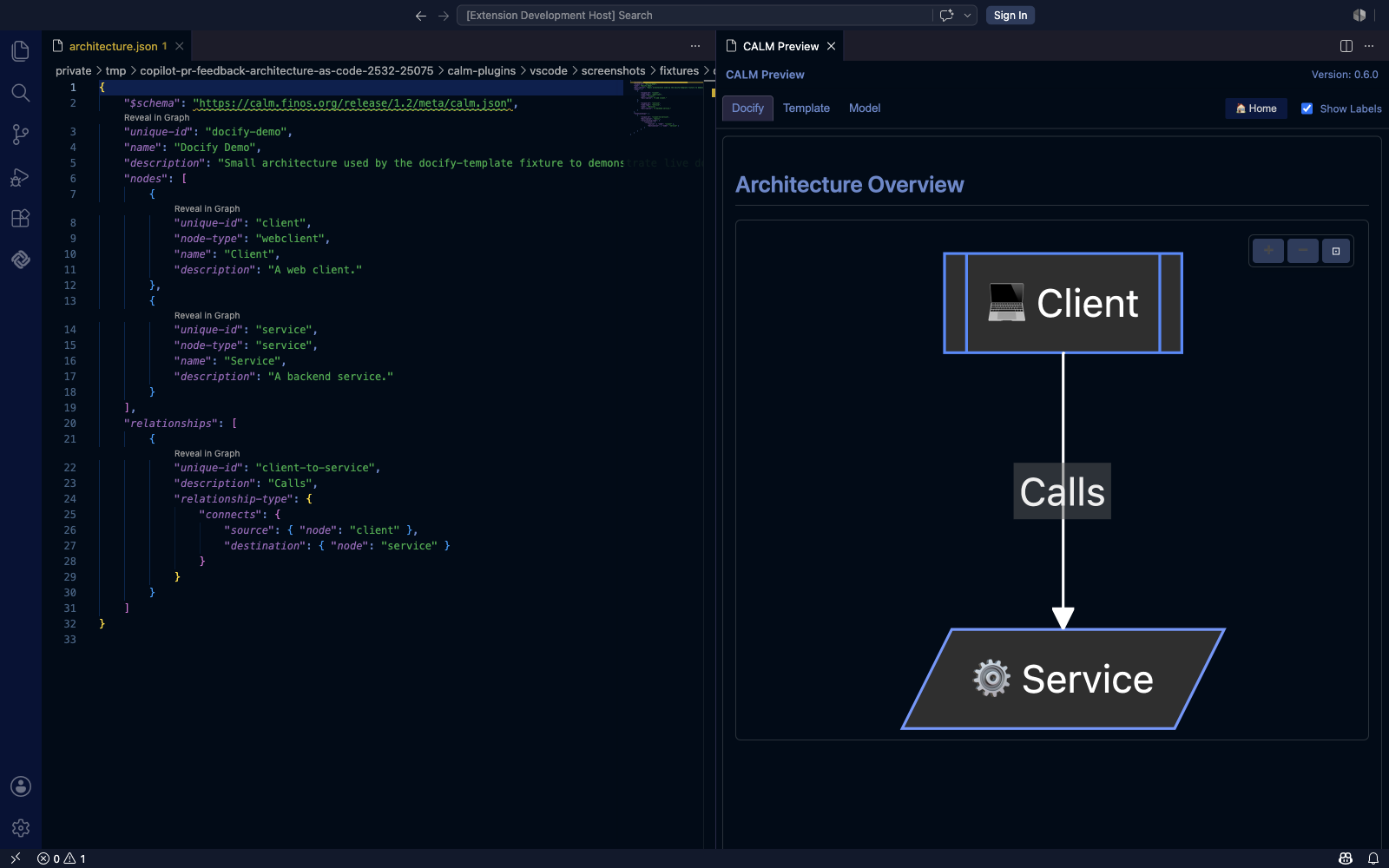
To produce static documentation outside the preview, use either of:
- CALM: Create Documentation Website (
calm.createWebsite) — runs the docify pipeline against the workspace and writes an HTML site to disk. - The equivalent CLI command — see
calm docify— for batch generation in CI or scripts.
Both consume the same calm.urlMapping configuration (see Multi-Document Navigation), so authoring once works for interactive, batch, and CI documentation flows.
Pair this with the Handlebars Templates tutorial if you're new to authoring custom templates.
Configuration Reference
All settings live under the calm.* prefix in settings.json (Cmd+, / Ctrl+,).
| Setting | Type | Default | Description |
|---|---|---|---|
calm.cli.path | string | ./cli | Path to the CALM CLI entry. Falls back to internal validation when absent. |
calm.files.globs | string[] | ["calm/**/*.json", "calm/**/*.y?(a)ml"] | Glob patterns the extension uses to discover CALM model files. |
calm.template.globs | string[] | ["**/*.md", "**/*.markdown", "**/*.hbs", "**/*.handlebars"] | Glob patterns for template files that may reference architectures. |
calm.docify.theme | enum | auto | Diagram colour theme. See Themes. |
calm.preview.layout | enum | elk | Layout engine for the diagram. See Layout Engines. |
calm.urlMapping | string | "" | Path to a JSON file mapping URLs to local files. See Multi-Document Navigation. |
calm.schemas.additionalFolders | string[] | [] | Extra folders to load CALM schemas from. See Schema Development. |
Schema Development
If you're authoring custom CALM schemas (extending the official ones, or experimenting with a new domain), the extension can load schemas from arbitrary folders so your models validate against your in-progress definitions:
"calm.schemas.additionalFolders": ["./my-schemas", "./custom-calm-schemas"]
Each file in those folders is indexed by its $id. Reference the $id from your CALM documents' $schema field and the extension uses your local copy without a round-trip to the network.
Keyboard Shortcuts
| Action | macOS | Windows / Linux |
|---|---|---|
| Open preview | Cmd+Shift+C | Ctrl+Shift+C |
| Command Palette | Cmd+Shift+P | Ctrl+Shift+P |
| Show Hover | Cmd+K Cmd+I | Ctrl+K Ctrl+I |
| Show Problems Panel | Cmd+Shift+M | Ctrl+Shift+M |
Getting Help
- Issues & feature requests: github.com/finos/architecture-as-code/issues
- Source: calm-plugins/vscode
- Beginner walkthrough: Install the CALM VS Code Extension
- CLI equivalent:
calmCLI for batch use outside the editor